System Setting
- Settings
- Account
- Managing notifications
- Changing registered e-mail
- Changing language
- Changing units of measurement
- Delete account
- Log out
- Viewing help content
- Contact support
Settings
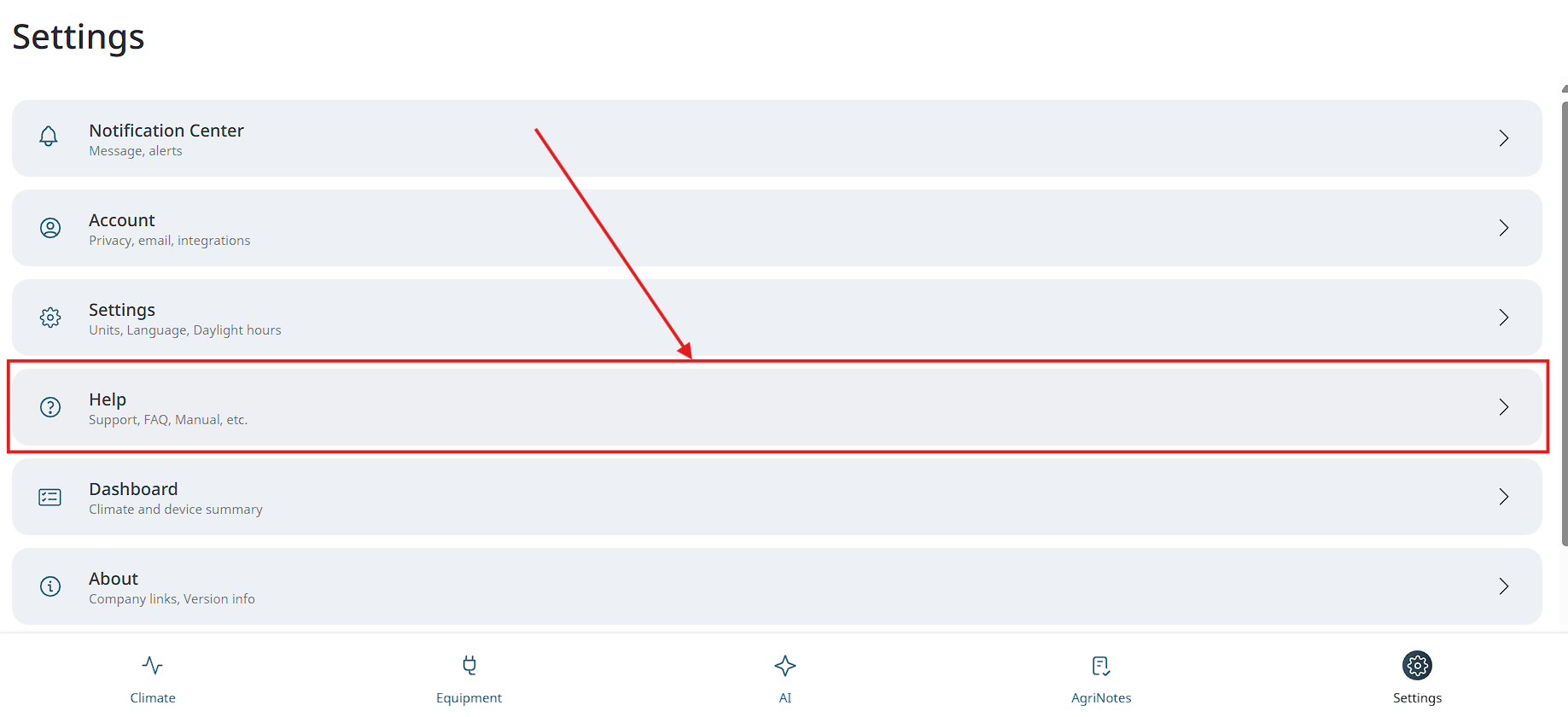
GrowDirector lets you manage your common account settings. To access the settings page, tap the Settings button on the right corner of the TabBar. The following Settings screen appears:
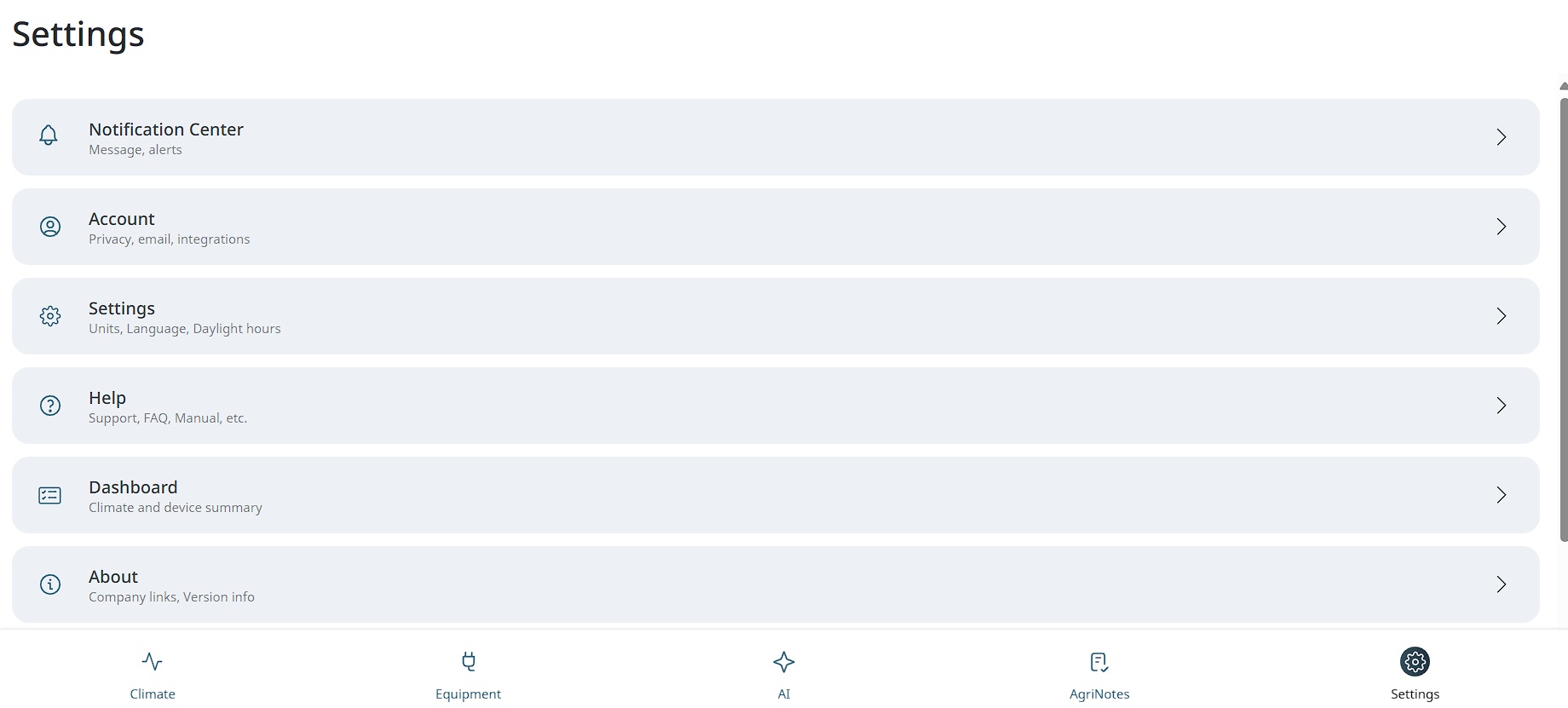
Tap the options on the Settings page to manage the respective settings.
Settings is a menu item that consists of configurable functions and personal user info. By clicking on settings on menu system will open the main settings page. There are several items in the settings list:
-
Notification center - in app notifications
-
Account - account settings and details
-
Language - app language selection
-
Units - selection of measurement types in app
-
Help - manual for using application
-
Contact support - contact support form to ask any question
-
Log out - log out from existing account
Account
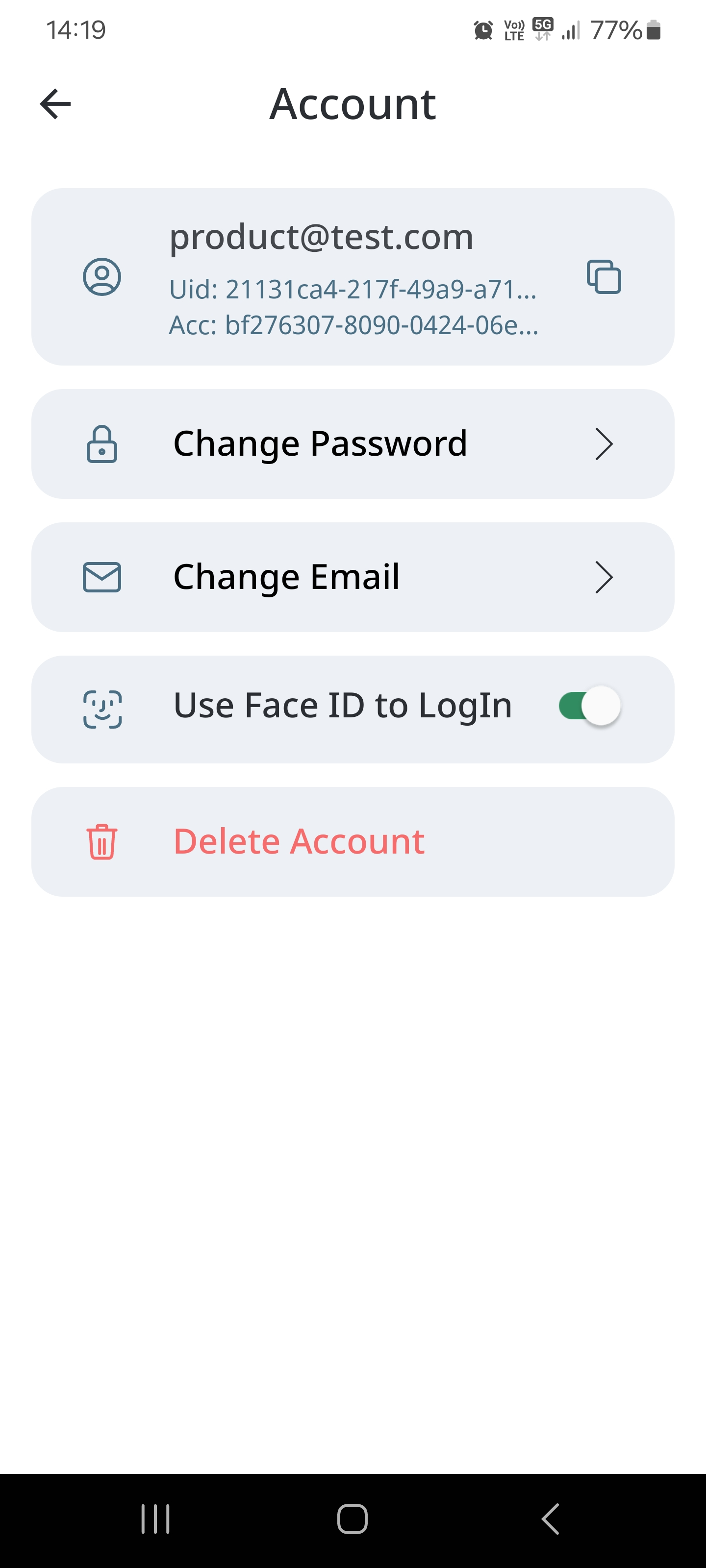
By click on Account system will open list of account settings:
-
Change email
-
Change password
-
Delete Account
Delete account-
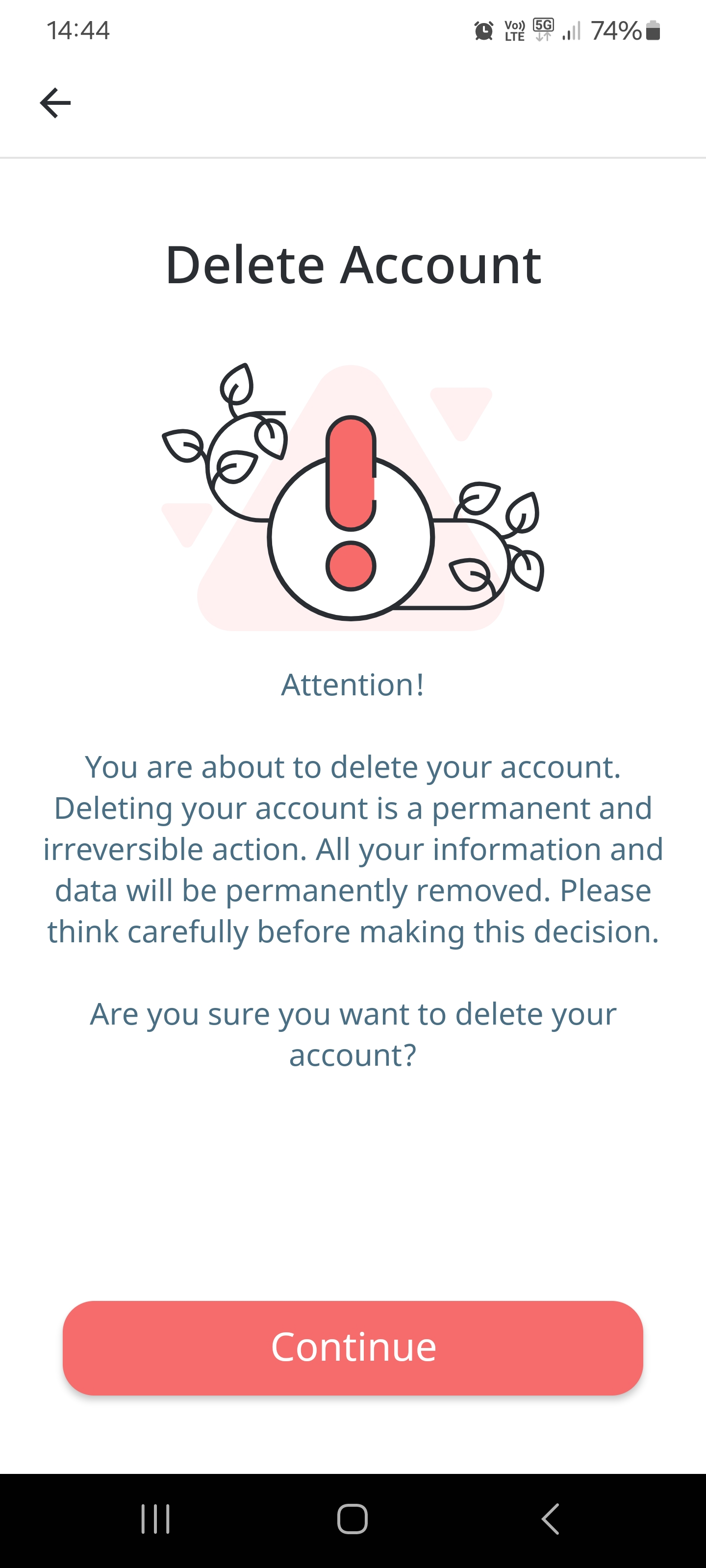
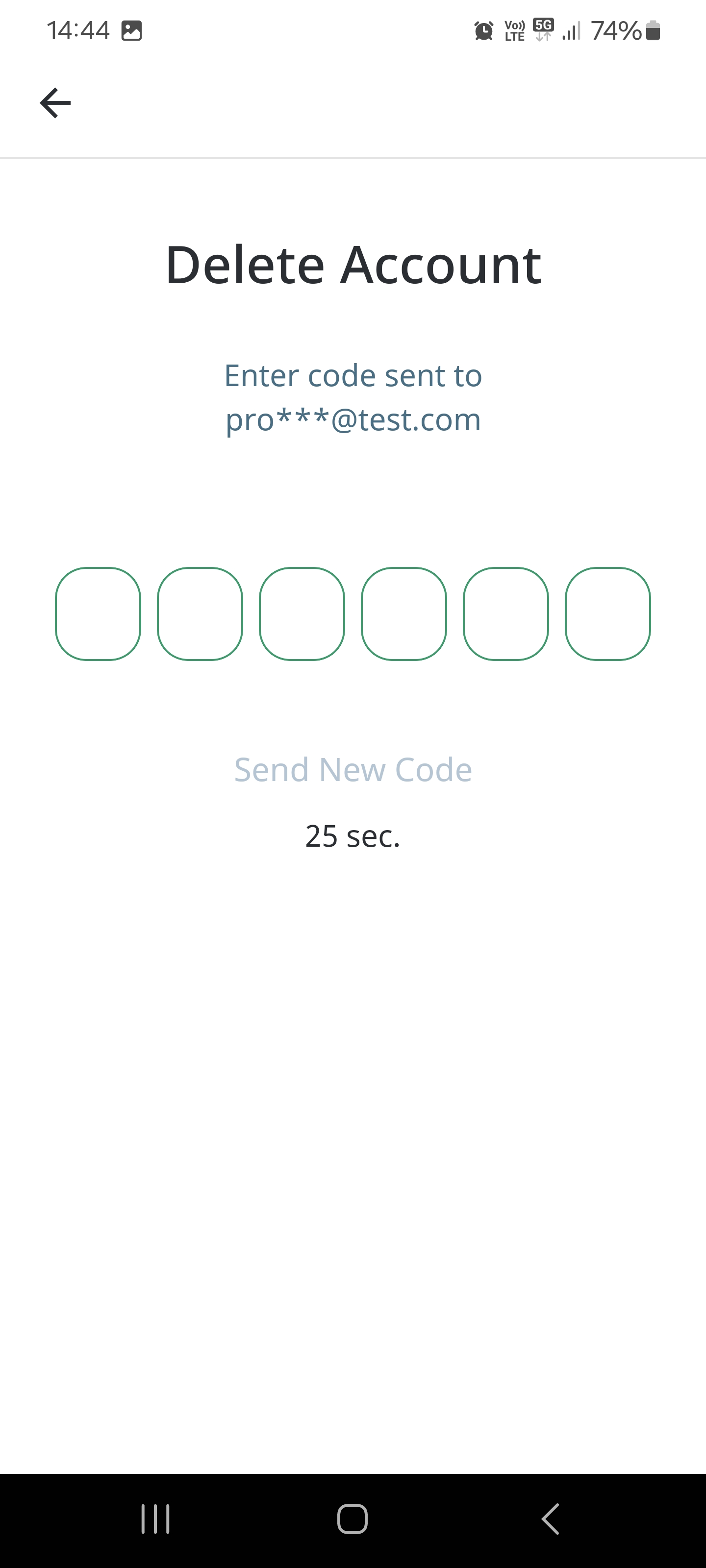
This section is used for permanent removing a client's account and deleting all his\her information. This is an irreversible action! Once the client clicks on the “Delete Account” button, an automated pop-up will comes out to take his attention to his action. If the client choose to proceed the procedure and click the green “Continue” button, he\her will be transferred to a new window. A code will be sent to clients email address to fill in that window. After filling the code, the account will be permanently removed.
Managing notifications
To view notifications, please, follow these steps:
- Tap the Notification Center option on the Settings screen. The following screen appears:
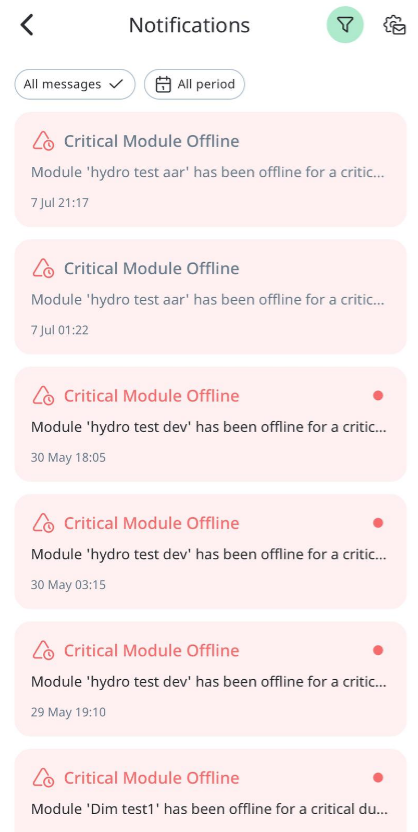
Your mobile device must have open notification access to receive notifications from GrowDirector. If you are experiencing issues with receiving notifications, we advise to check:
● Make sure your mobile device is connected to the Internet.
● Try a different Internet connection. For example, if you are connected to Wi-Fi, try mobile data, and vice versa.
● Check your mobile device's settings.
● Restart your mobile device.
Notifiction filters
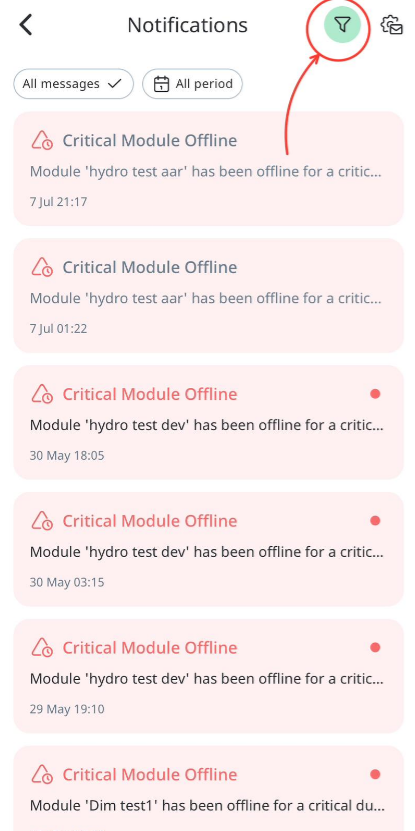
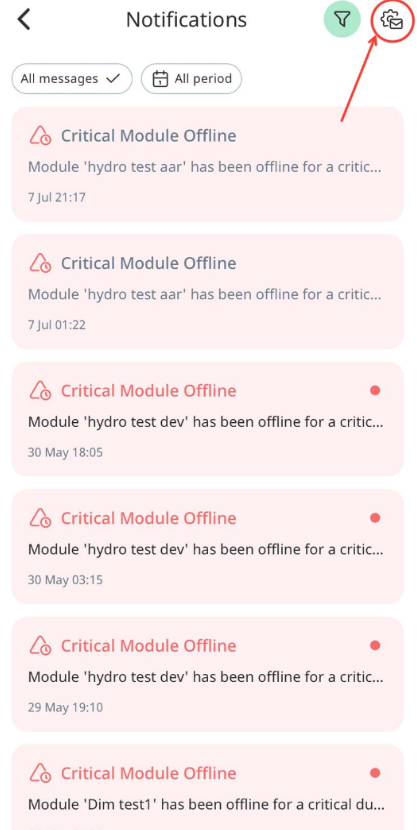
To see Notification Filters tap the Filter button on the top-right corner of the screen, then you can choose needed filter. The following screen appears:
Notification preferences
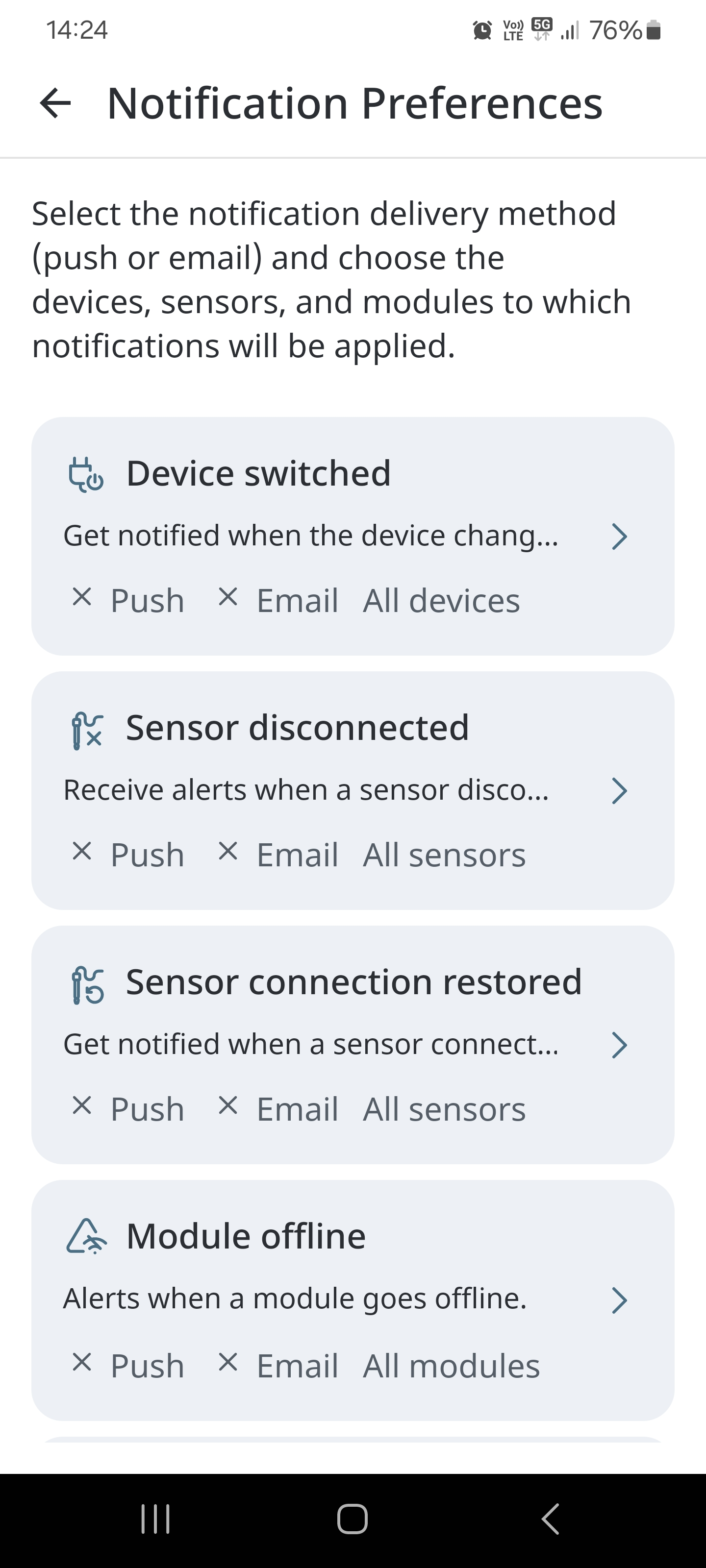
To see and set Notification Preferences Tap the Setting button on the top-right corner of the screen, then you can able to get 2 types of notification: push or email (or both of them) and from choosen module or from all modules. The following screens appears:
Notification types
Notification types can be divided into 3 categories:
Info notifications:
- Device switched notifications
-
Sensor connection restored notifications
-
Module connection restored notifications
-
Sensor back in range notifications
- Warning notifications:
-
Sensor disconnected notifications
-
Module offline notifications
-
Sensor out of range notifications
- Critical notifications:
-
Module offline critical time notifications
-
Rule setpoint cannot be reached notifications
-
Notification that the device is working for more than the maximum time set.
-
Notification of sensor problems on which the rule works
Changing registered e-mail
To change your registered email, please, follow these steps:
- Tap the Account option on the Settings screen. The following screen appears:
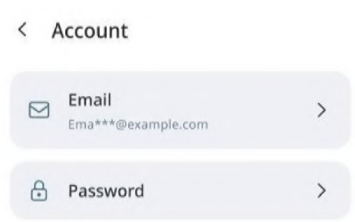
- Tap the Email option. Then you will need to enter new email and press “continue”. The following screen appears:
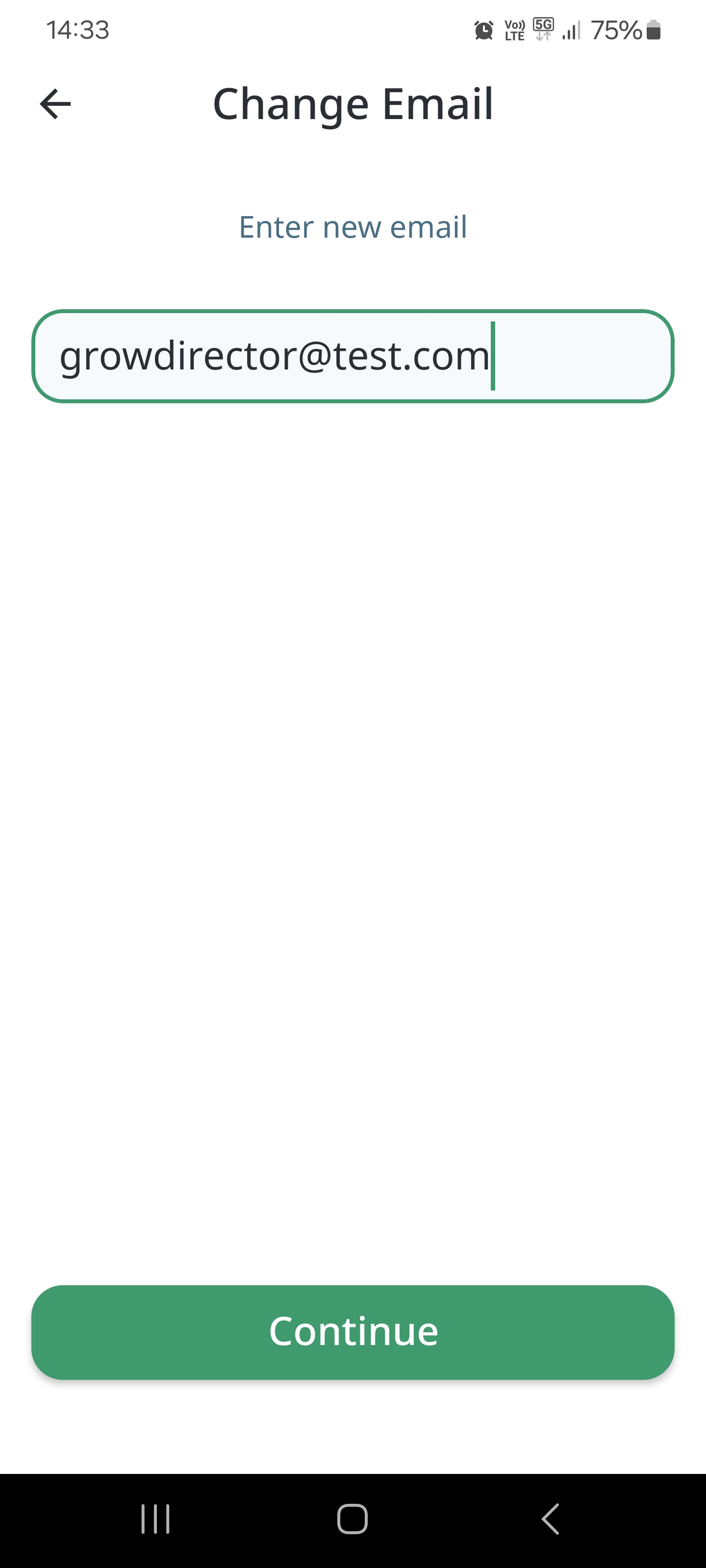
- On this mail you will get 6-numbers code to enter here. After entering the code and pressing “Ok” the system will send other 6-numbers code to the old email which you have to enter in the App too.
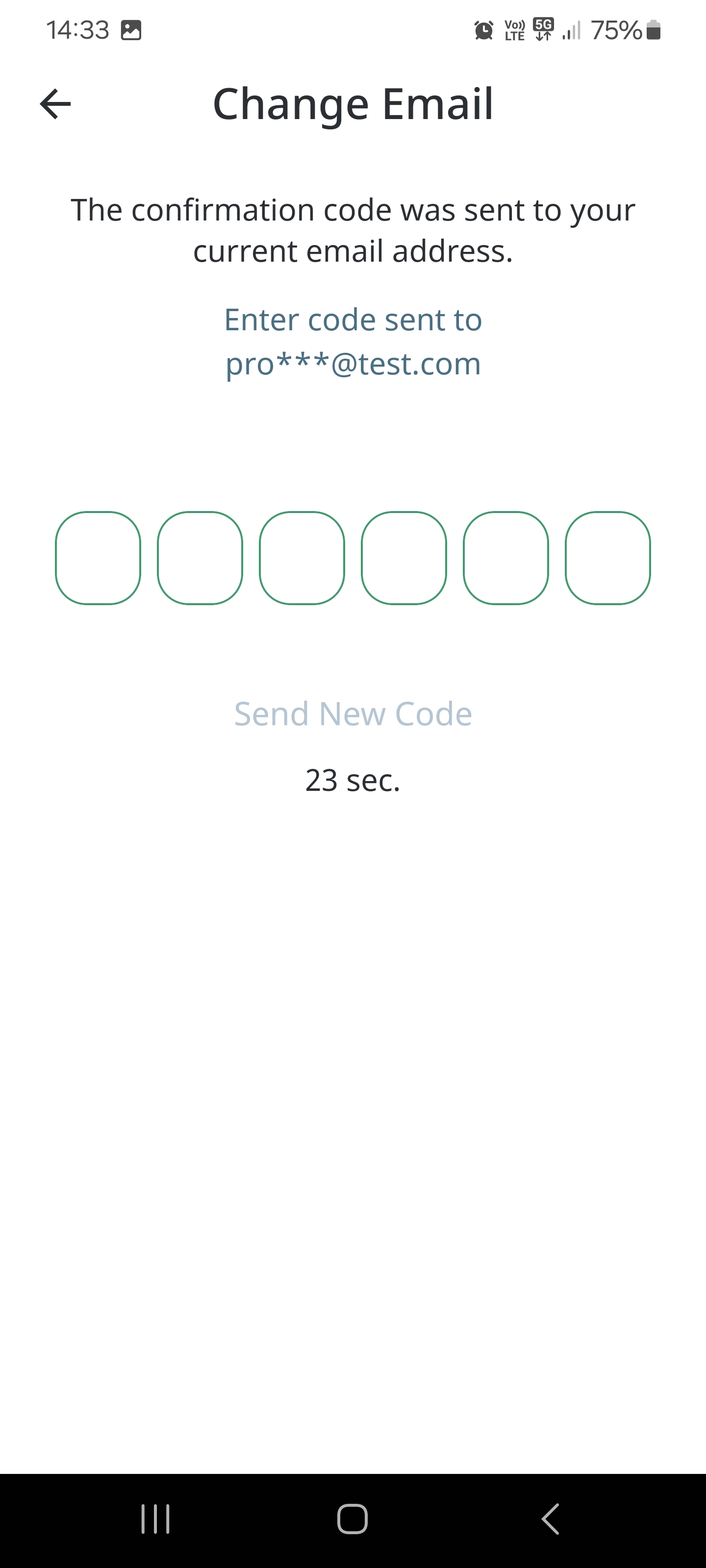
- After that your email will be changed.
Changing language
To change your language, please, follow these steps:
- Tap the Language option on the Settings screen. The following screen appears:
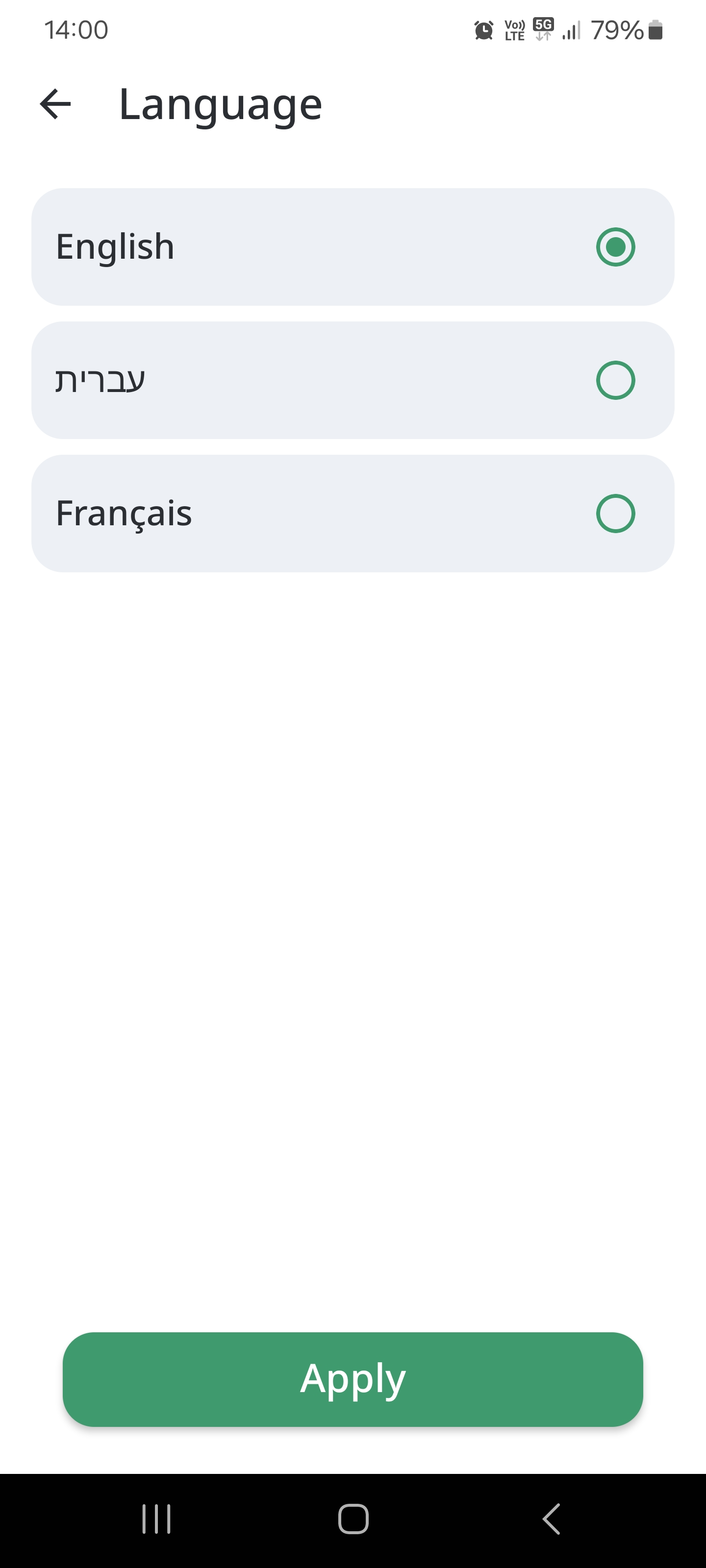
- Select your desired language.
Changing units of measurement
To change your units of measurement, please, follow these steps:
- Tap the Units option on the Settings screen. The following screen appears:
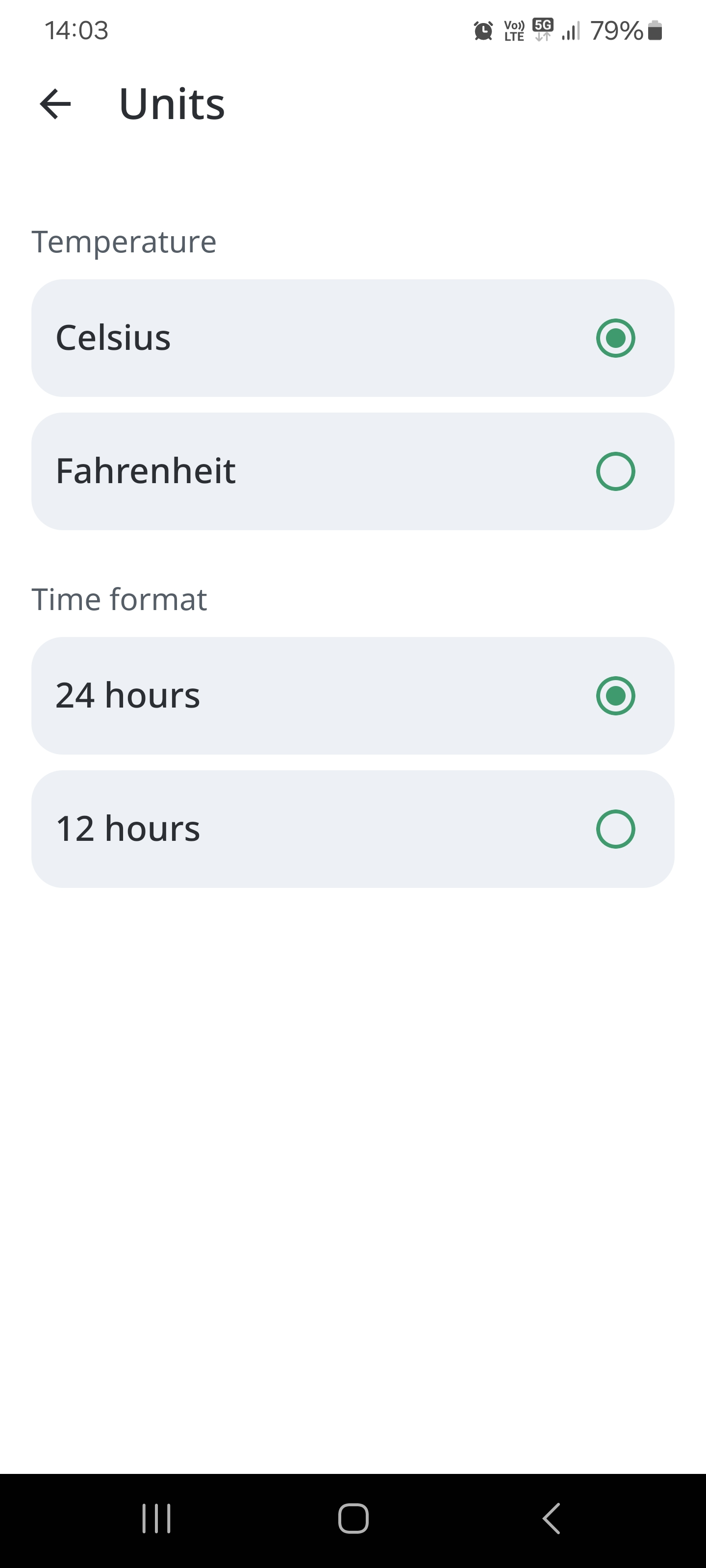
- Select your desired units of measurement for the following:
● Temperature,
● Time format.
Delete account
This section allows users to permanently delete their account and all of their associated information. This is an irreversible action, so please make sure you are sure before proceeding.
To delete your account, follow these steps:
-
Click the Delete Account button.
-
A pop-up window will appear, warning you that this is an irreversible action. Click Continue if you are sure you want to delete your account.
-
You will be asked to enter a code that will be sent to your email address. Enter the code and click Submit.
-
Your account will be deleted.
Here are some additional things to keep in mind:
-
Once your account is deleted, you will no longer be able to access it.
-
All of your data, including your profile, posts, messages, and other information, will be permanently deleted.
-
There is no way to recover a deleted account.
If you are having any problems deleting your account, please contact customer support.
Log out
Viewing help content
Route
You can view FAQs and the manual for the help content. To view them, please, follow these steps:
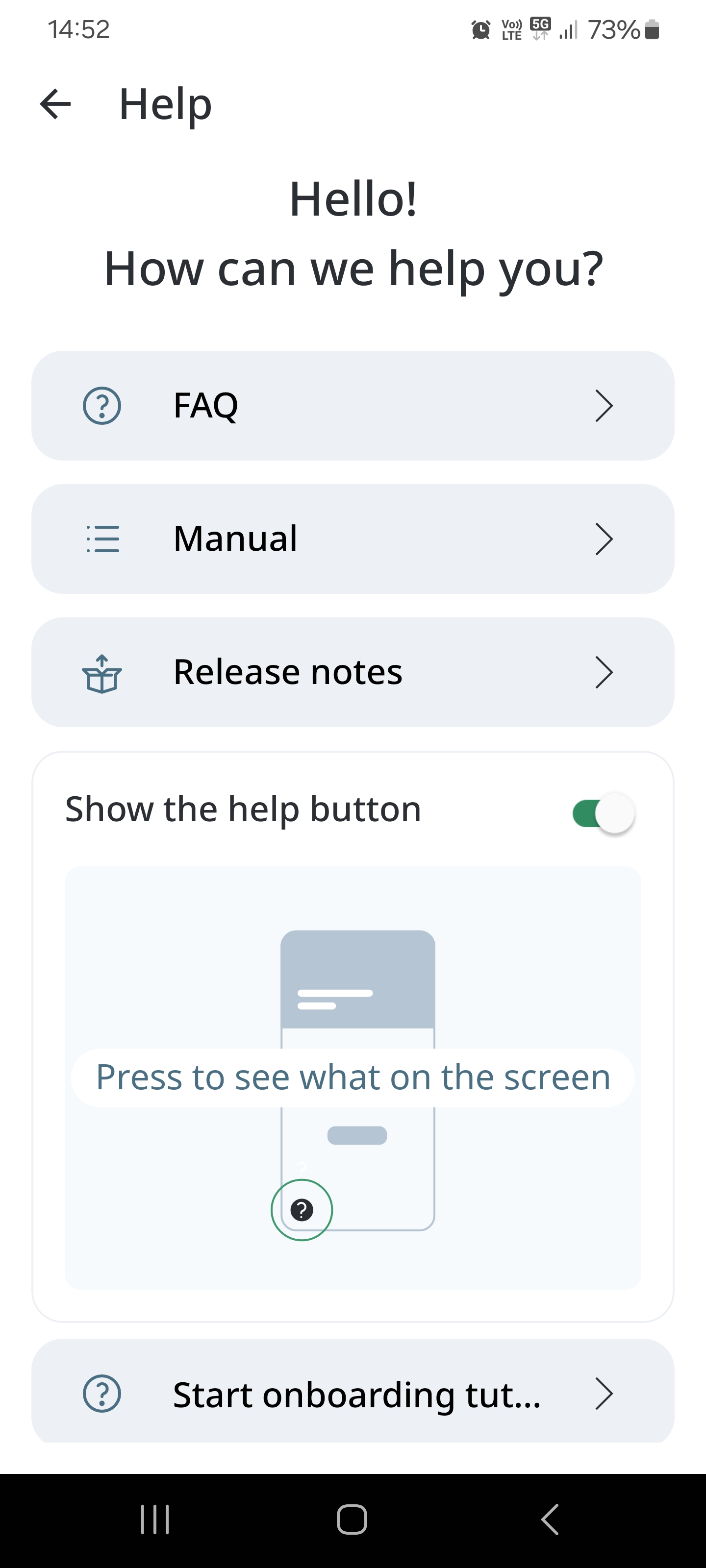
- Tap the Help option on the Settings screen, also you have an option to turn on/off the help button. The following screen appears:
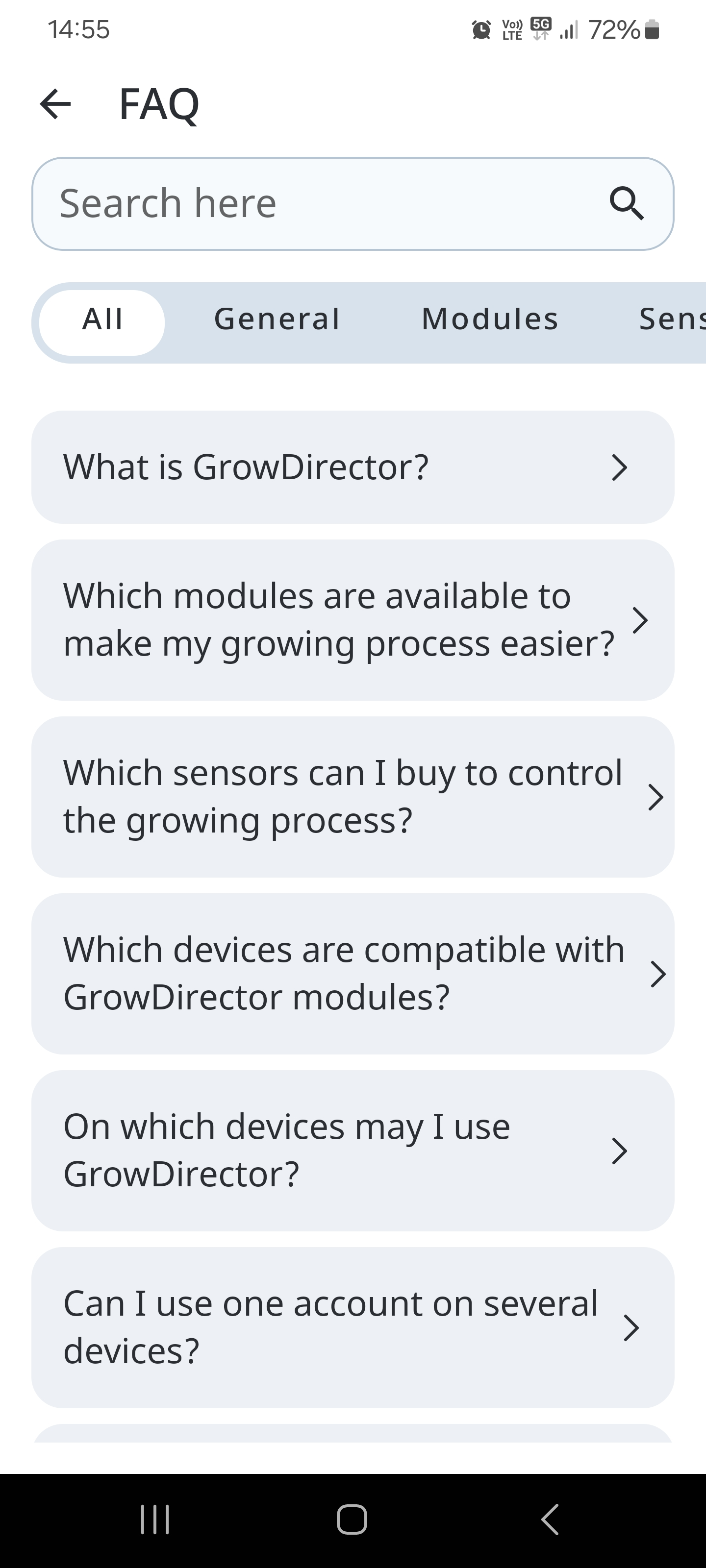
● Tap the FAQ option. The following screen appears where you can get answers to the frequently asked questions:
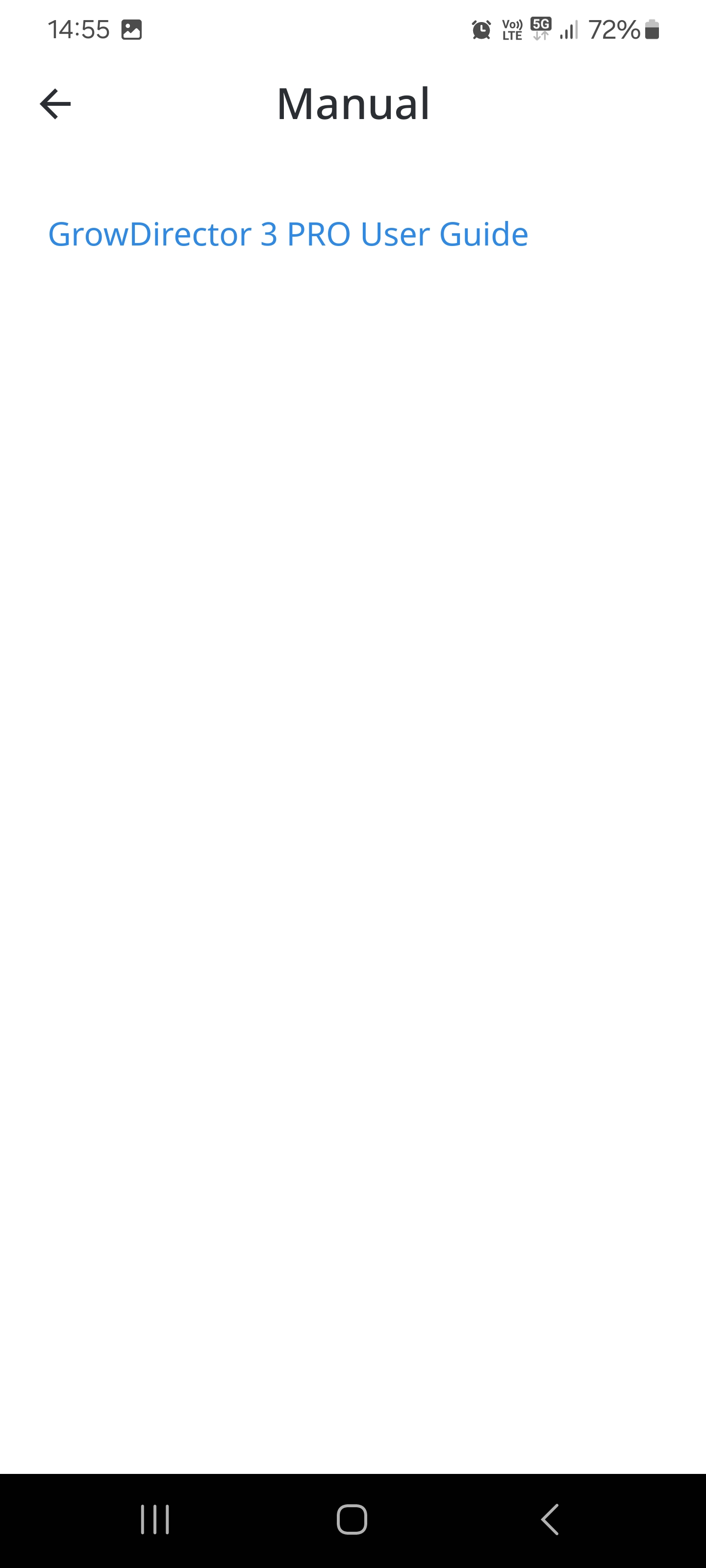
● Tap the Manual option. The following screen appears where you can read instructions on performing various operations:
FAQ
Page title: Manual (static text). Below the page title there is a search field that allows you to search any text in the manual guide. Search field criteria:
-
Partly match search
-
System starts auto search after user enters at least 3 characters and wait 2 seconds
-
Search result should show chapter name in which word was found and text (see design)
-
System shows 5 first search results that are sorted by page from 1 to infinite. After user scroll search result system should show 5 more search results.
-
By click on search result system opens correspondent page in manual.
-
After search started, system should hide chapter name below the search filed unless search field will be empty again
-
“Back” button on search screen allows user by click opens a Help main page.
-
In case user searched anything and clink on search result, then goes back to the list by clicking “Back” button, system should show previous search result with last search work in the field.
Below search field (in case it’s empty) system shows list of chapters from manual. By click on any chapter system opens the manual on the correspondent page. “Back” button allows the user by click open manual page with the search field again.
Release notes
To see Release Notes, please, follow these steps:
- Tap the Help option on the Settings screen. The following screen appears:
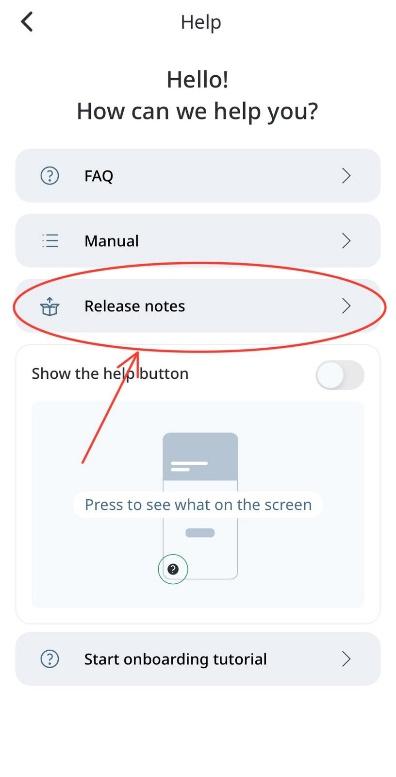
- Tap the Release notes button. The following screen appears:
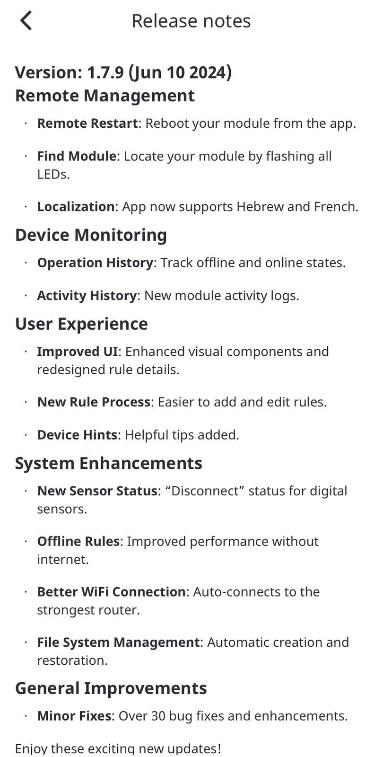
- You can see Release notes on screen:
Start onboarding tutorial
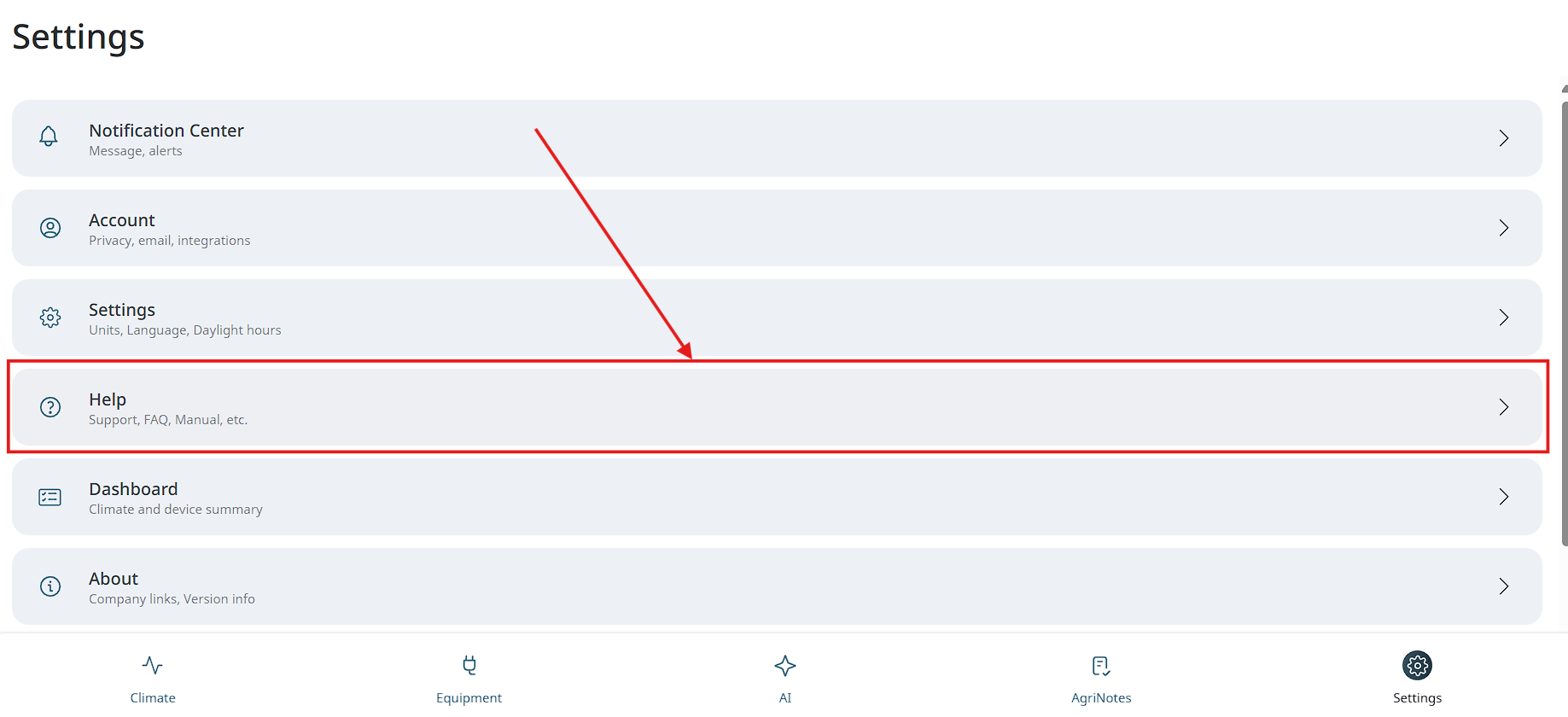
- Tap the Help option on the Settings screen. The following screen appears:
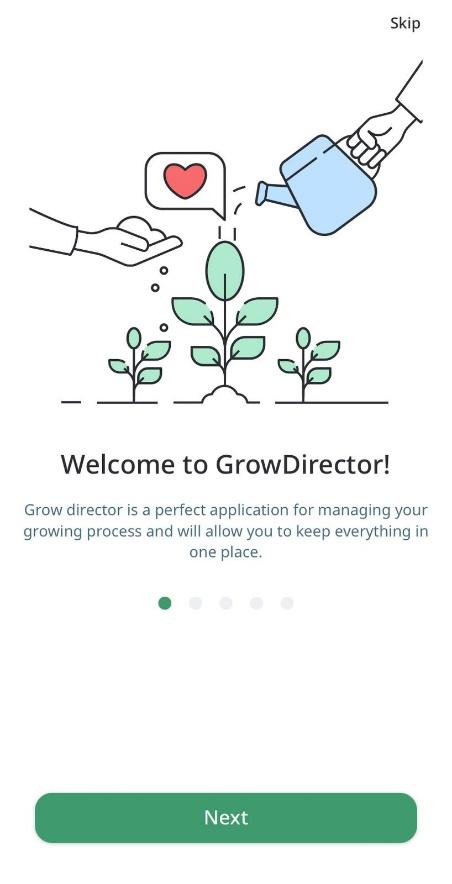
- Tap the Start onboarding tutorial button. The following screen appears:
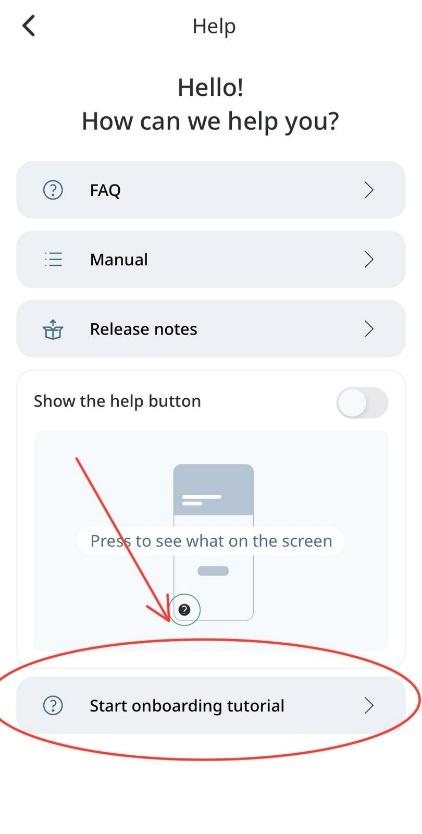
- You can see Onboarding tutorials on screen:
Contact support
If something is wrong with the module, sensor or mobile app work (using, calibration, adding, renaming, connecting, viewing, deleting, switching On and Off or managing), users can write their problem to support to get help.
To contact support for help, please, follow these steps:
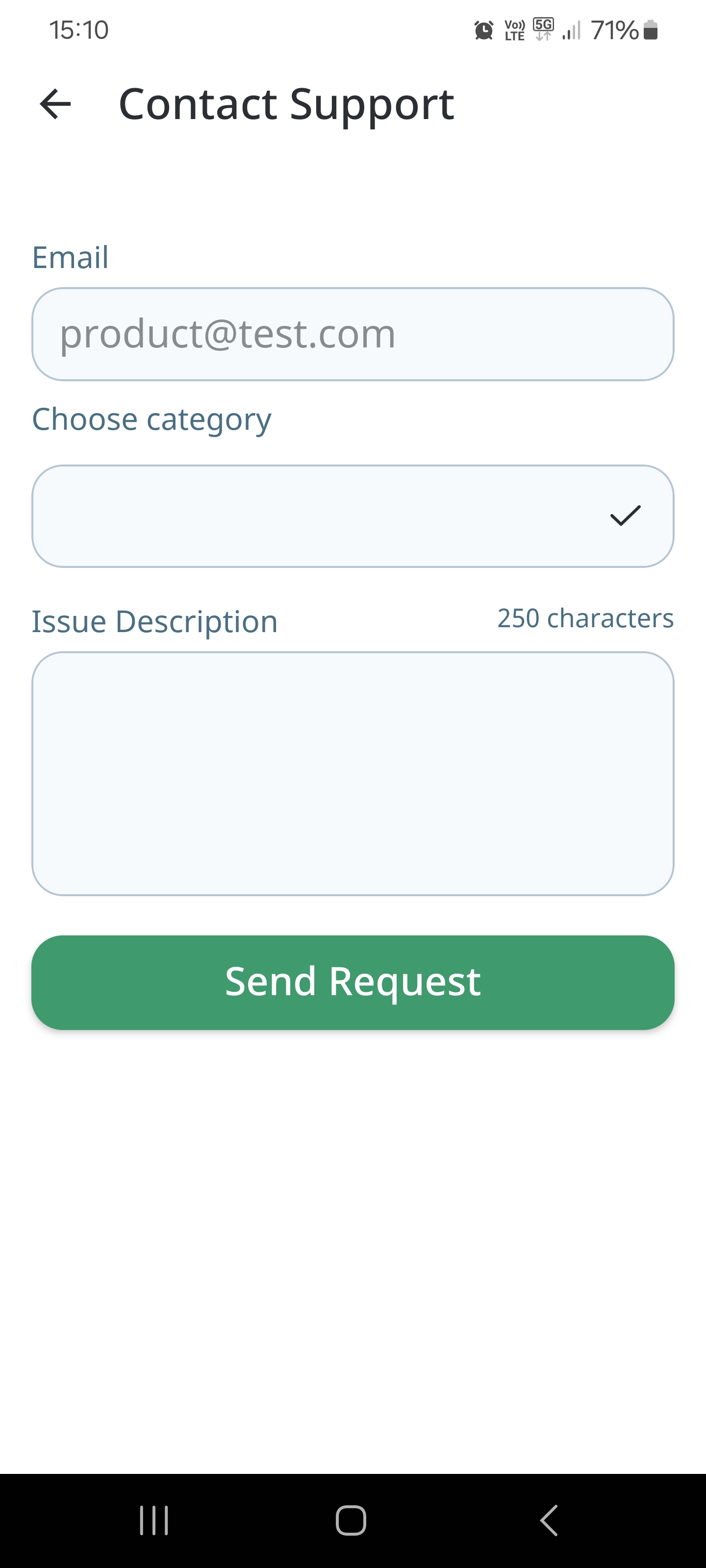
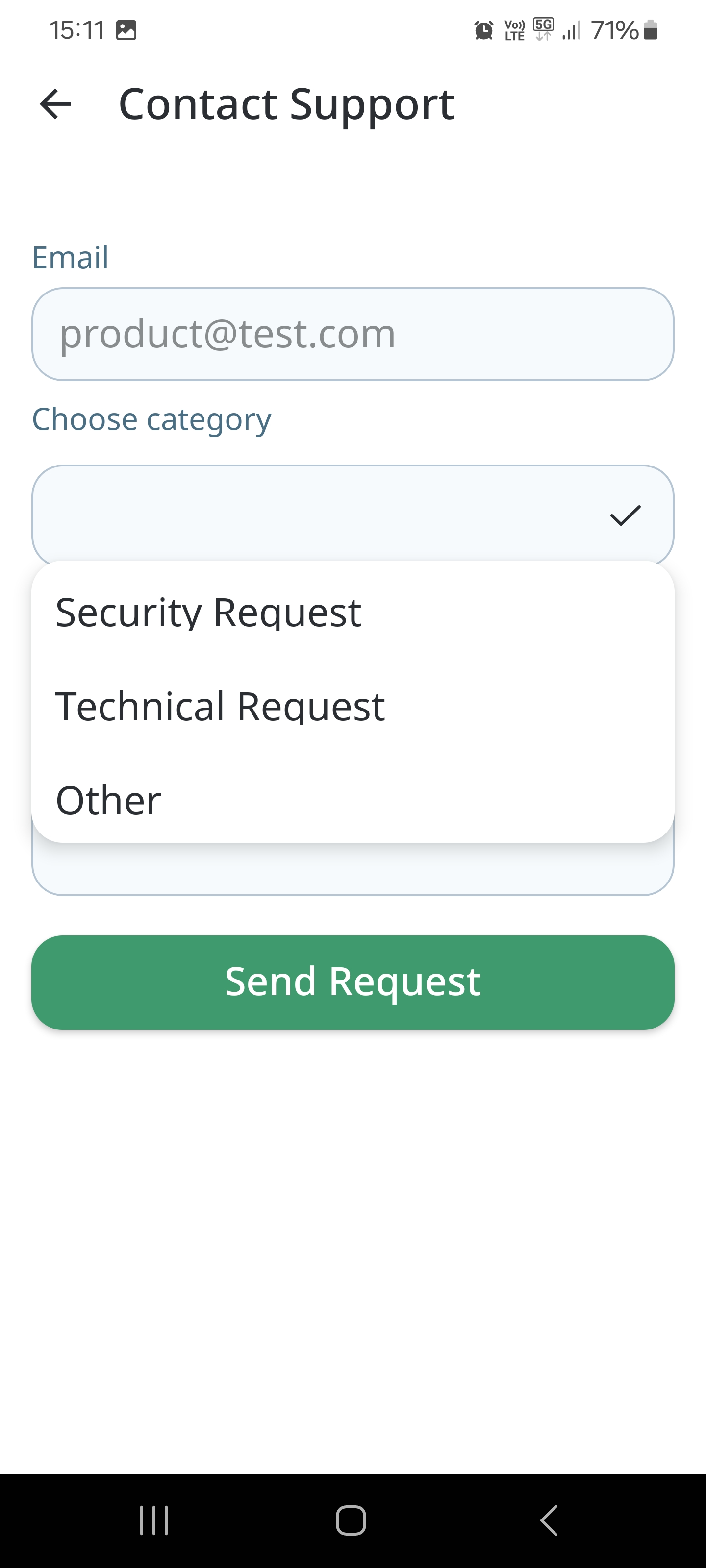
- Tap the Contact Support option on the Settings screen. The following screen appears:
-
Enter your email, choose a category, and enter the issue description.
-
Tap the Send Request button.
For all the questions related to the System’s operation, you can also contact us through
contact@growdirector.com or WhatsApp +972 55 687 5750.