Agrinotes
Enter the Agrinotes
Agrinotes is chapter of GrowDirector App for integration of grower sensor data from our device and basic ERP for growers as well as:
-
Integrated Pest Management (IPM) System: This feature could help growers monitor, and manage pests in their crops. It could include image recognition capabilities to identify pests from photos, as well as advice on how to manage and prevent infestations- the image identification is related to our AI Agronomist. should be in second stage. not as MVP.
-
Crop Rotation Planning: This feature will help growers plan their crop rotations to improve soil health and productivity. It could suggest optimal crop sequences based on the grower's past rotations and the needs of their crops.
-
Task Management: This feature could help growers manage their labor force more effectively. It could include scheduling, task assignment, and productivity tracking capabilities.
-
Advanced Analytics and Reporting: This feature could provide growers with detailed analytics and reports on their operations. This include information on crop performance received from climate page, labor productivity, and more. It could help growers to make data-driven decisions and continuously improve their operations.
-
Equipment Maintenance Scheduling: This feature could track the usage of equipment and schedule maintenance to prevent breakdowns and extend the life of the equipment.
-
Crop Variety Selection: Based on local climate and soil conditions, suggest the best crop varieties to plant.
-
Yield prediction software. This would allow growers to predict crop yields, which could help them to plan their production and marketing strategies. Maybe in the future we can integrate yield forecast like Hoogenform AI Horizen. Works something like. Tell me what was your yield in last X growing cycles for the same genetics / crop / variety. Now we see that this gro cycle temp humidity etc,.m are ok. We can say as was in the last time your crop will be ready in X days, your yield will be Y. NOT AS MVP.
-
Training software. This would provide growers with access to training materials on a variety of topics, such as greenhouse management, crop cultivation, and pest control. (can be done with help of chat GPT data)-not for first stage
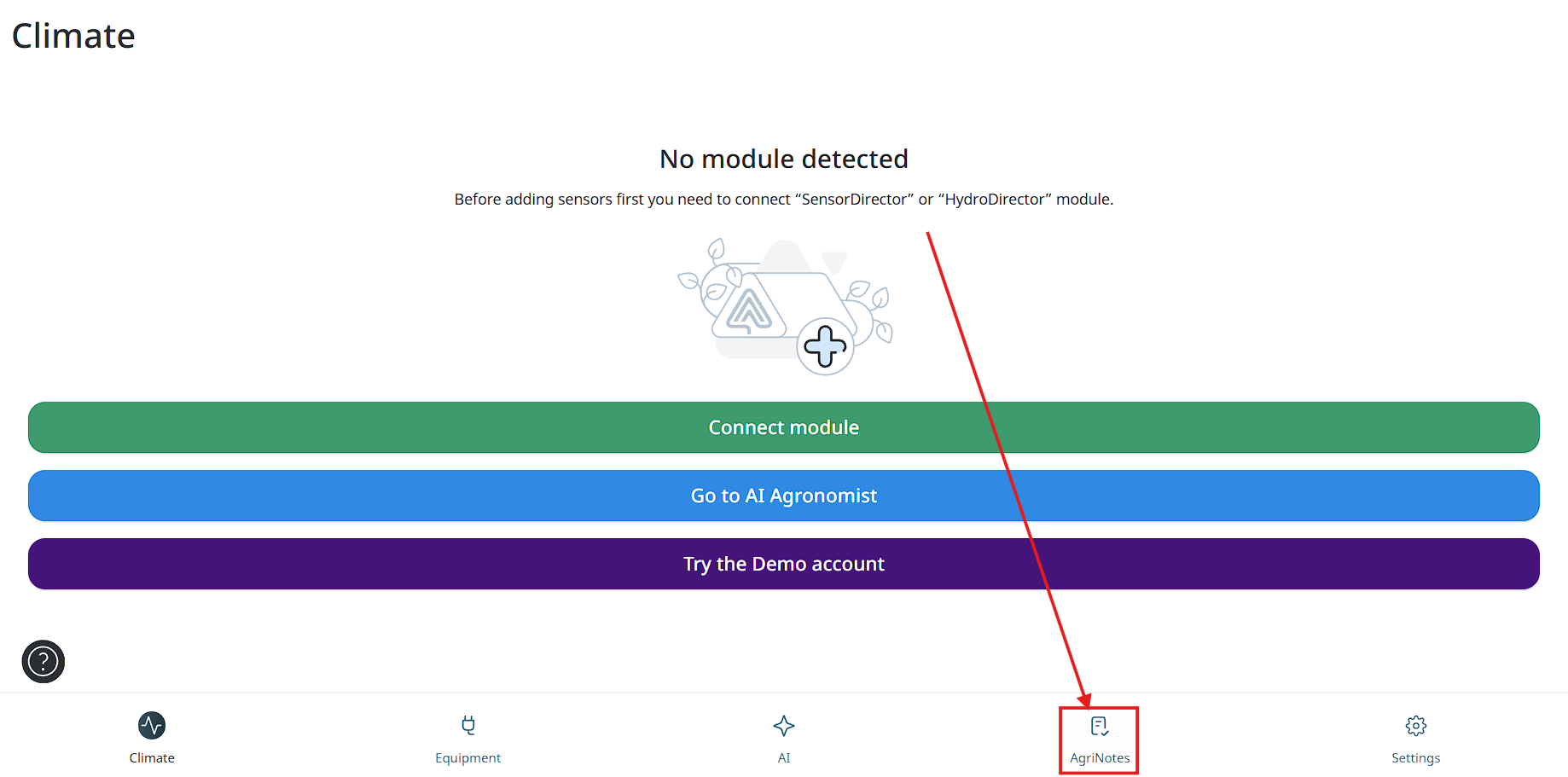
To enter Agrinotes you need to tap on the “Agrinotes” icon between “Modules” and “Settings” icons on the bottom panel of the App.
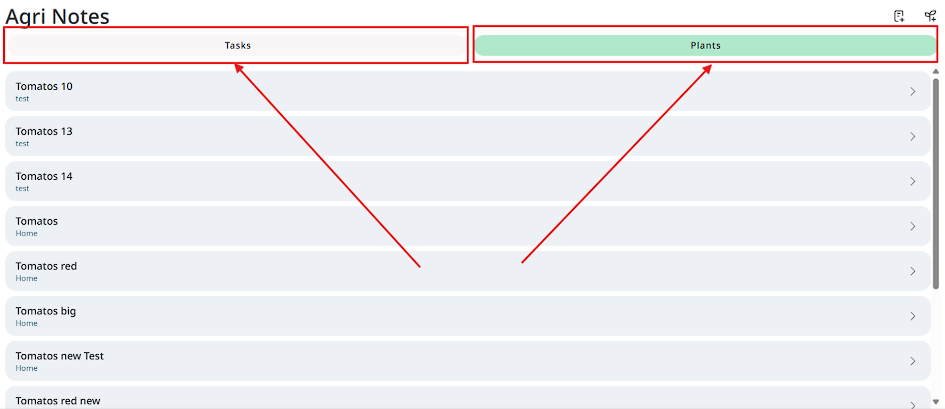
On the Agrinotes screen users can see next chapters: “Tasks” and “Plants”.
Chapter “Tasks”
- To find chapter “Tasks” user needs to tap on the “Agrinotes” icon between “Modules” and “Settings” icons on the bottom panel of the App.
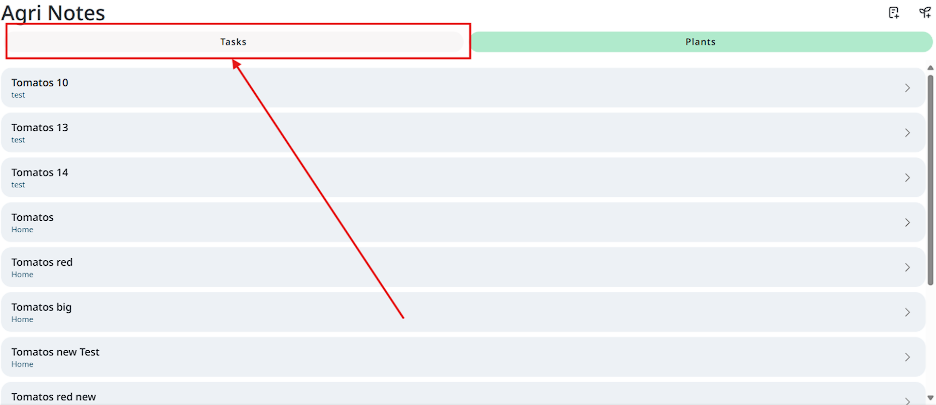
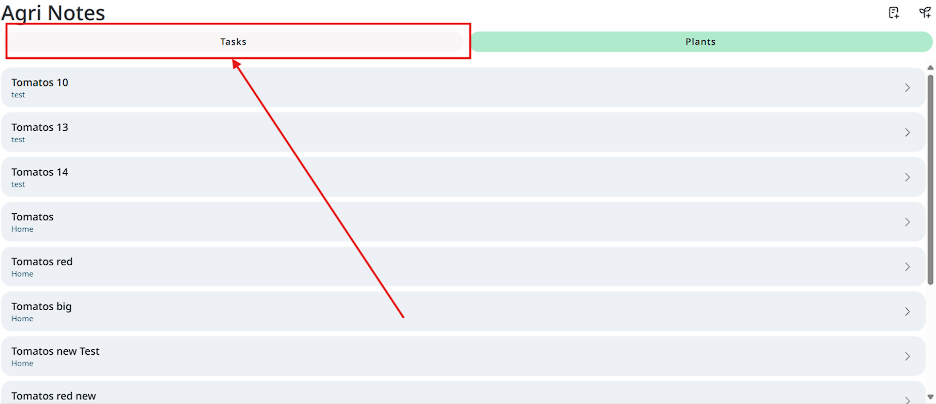
- Then user will see Agrinotes screen, on this screen user has to tap “Tasks” on the top left corner.
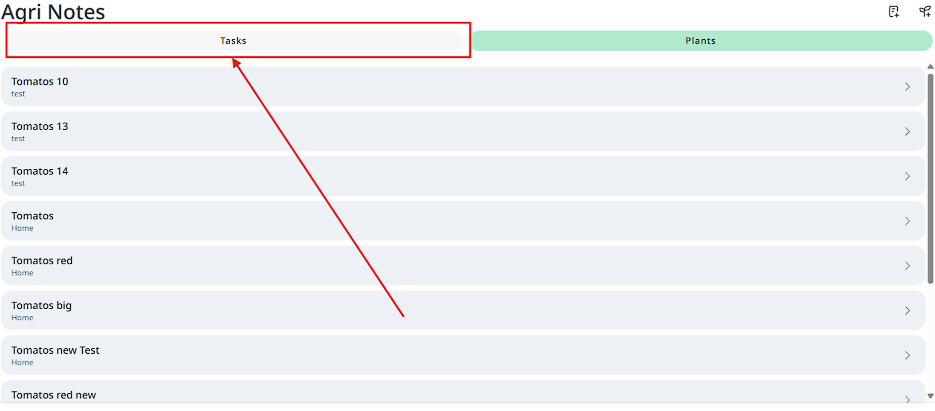
- On the opened screen user can see calendar with tasks he made.
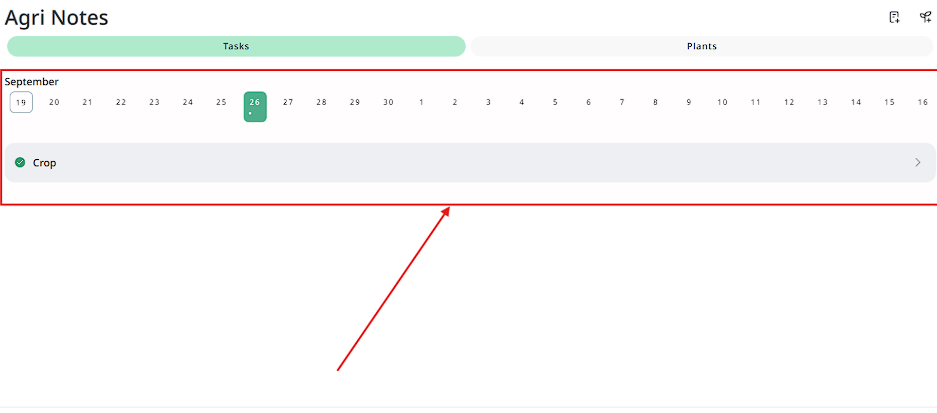
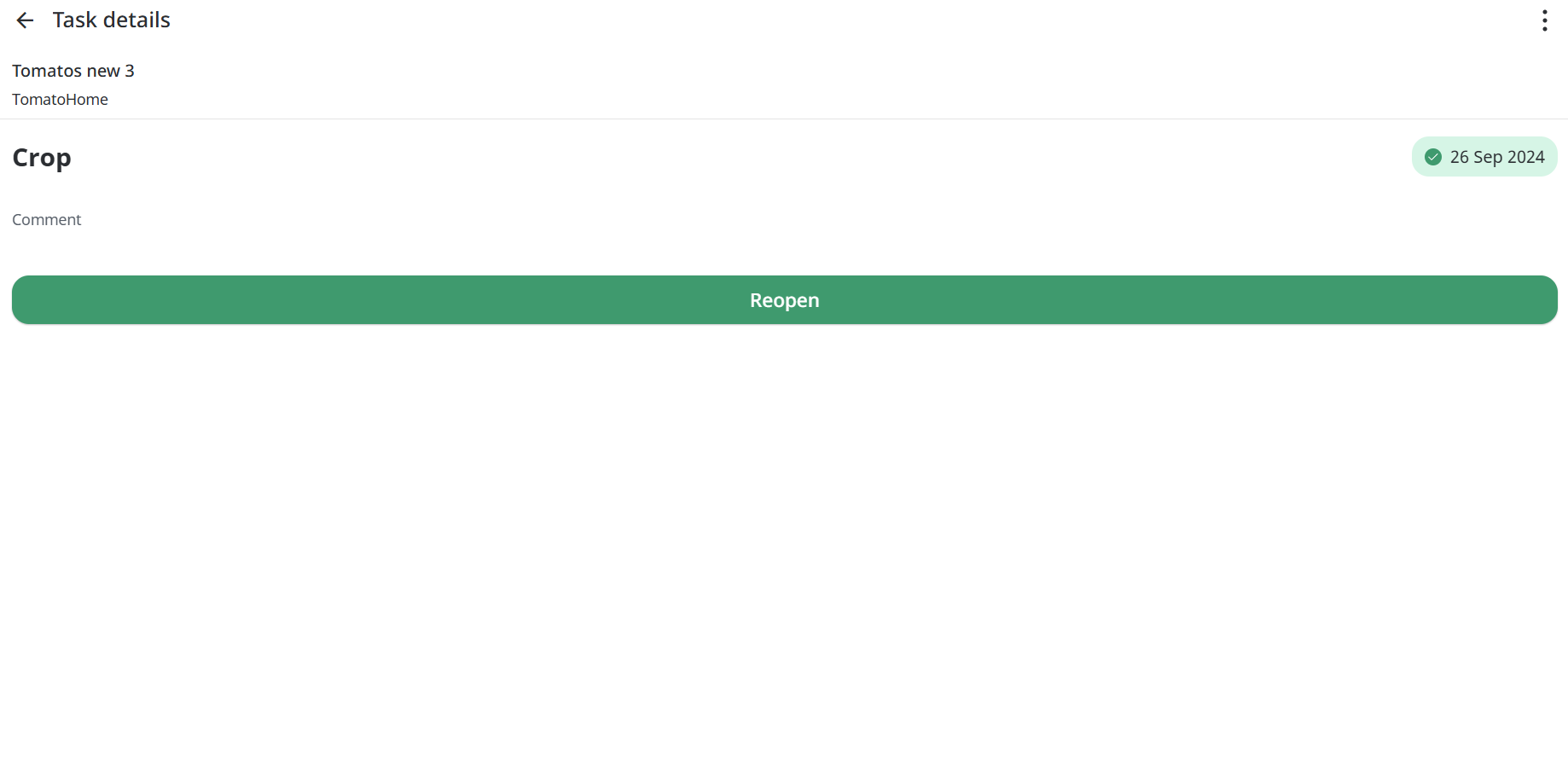
- Next user can tap on the task to see task details.
Creating task
- To create task user needs to tap on the “Agrinotes” icon between “Modules” and “Settings” icons on the bottom panel of the App.
- Next user has to tap on the “Create task” button on the top right corner.
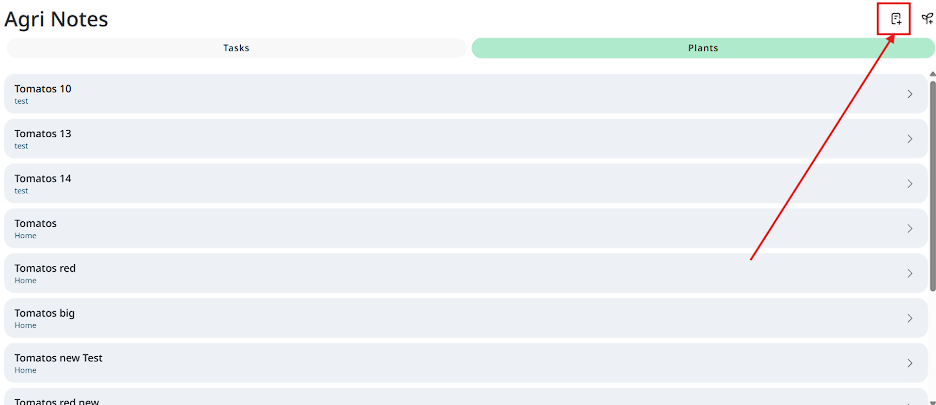
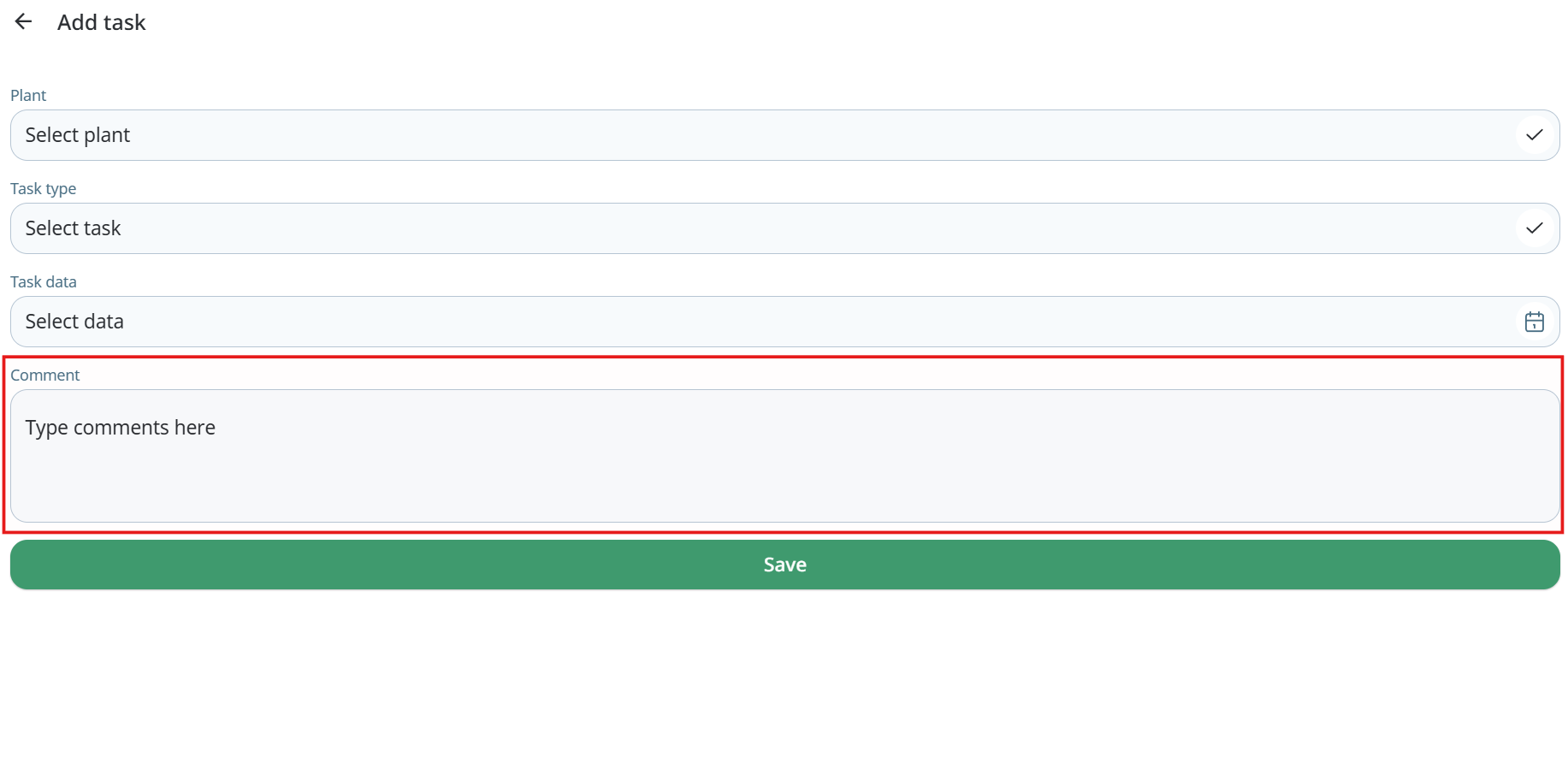
- At first user needs to select plant.
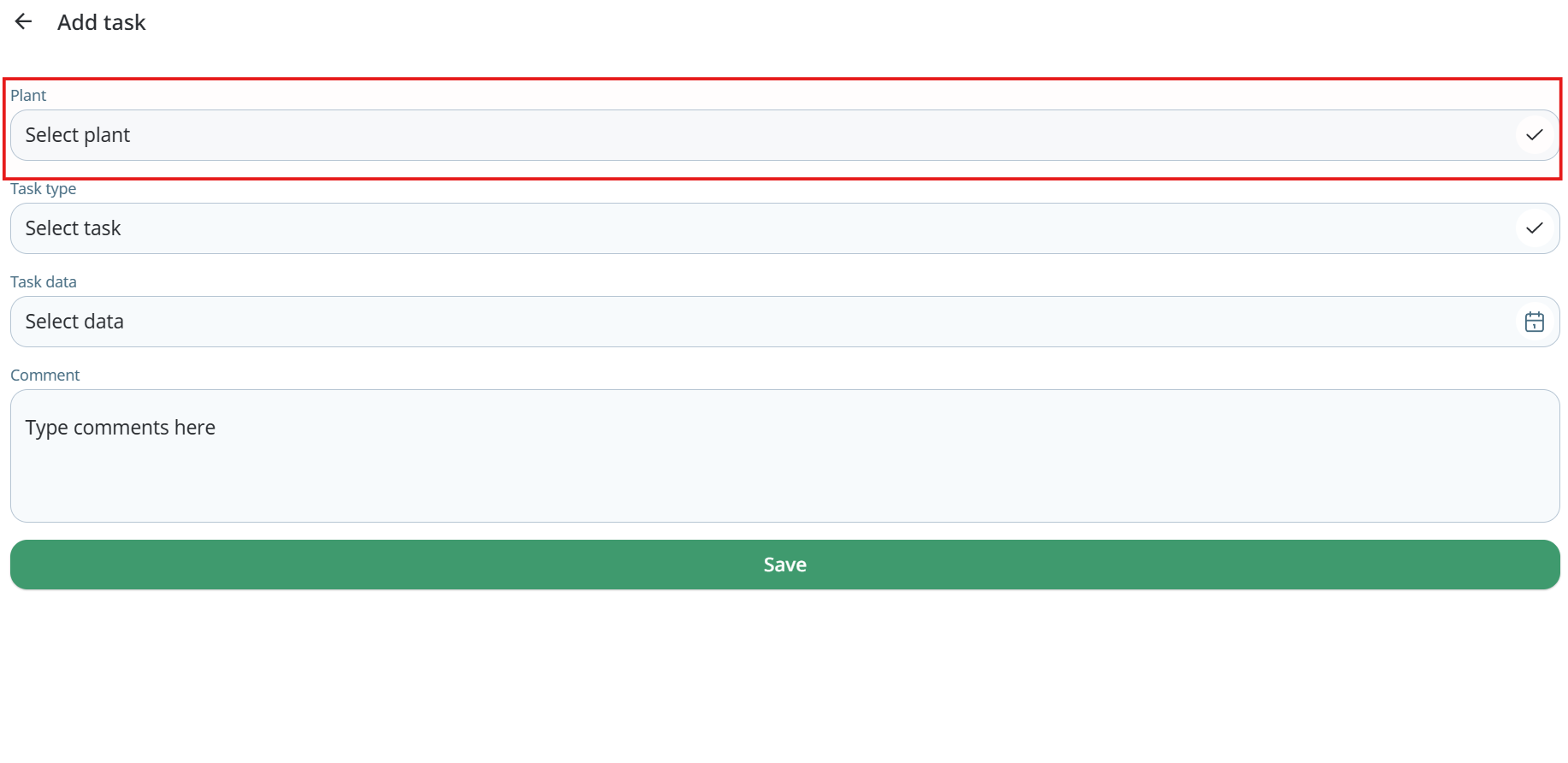
- Next select task type.
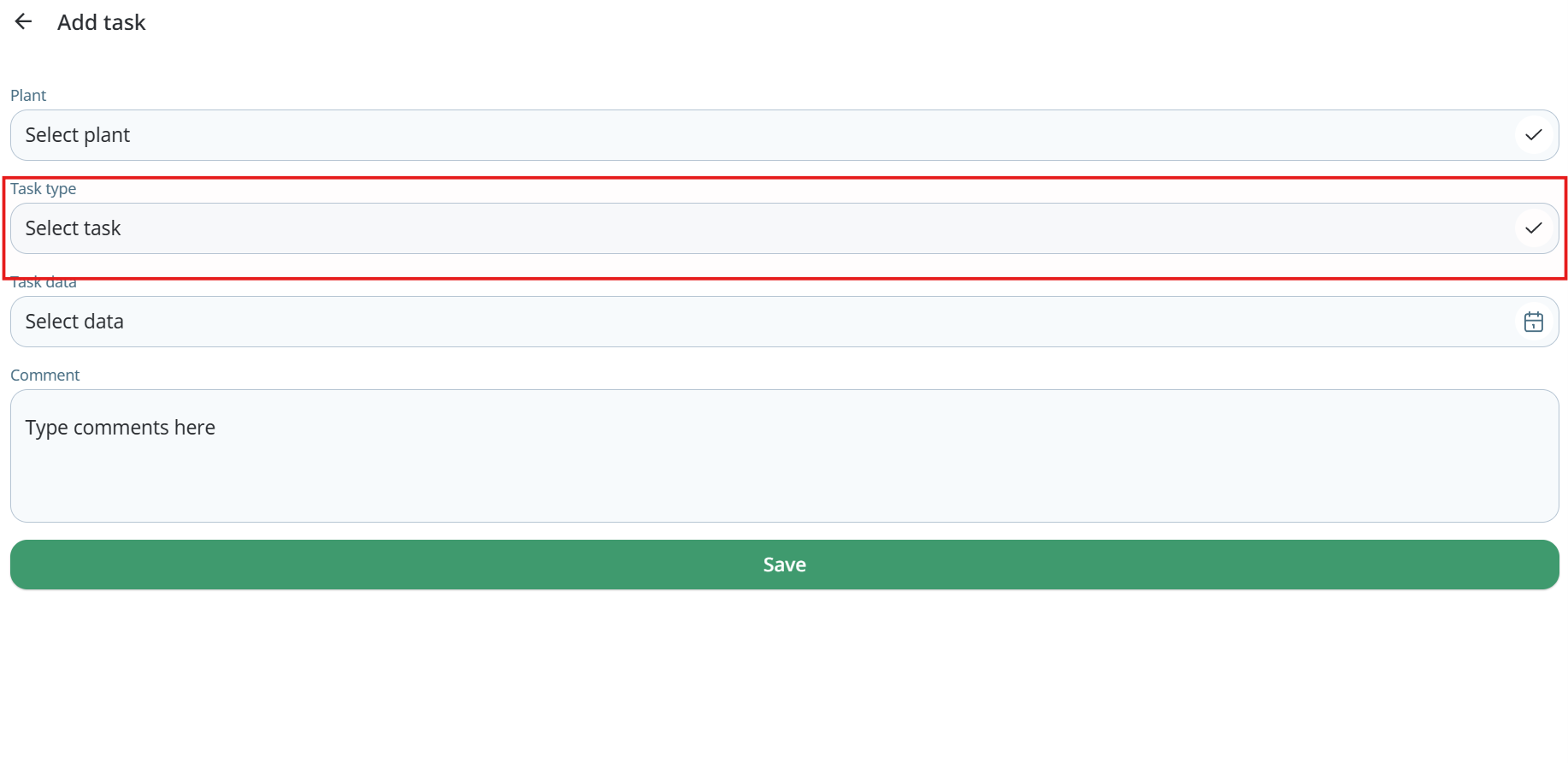
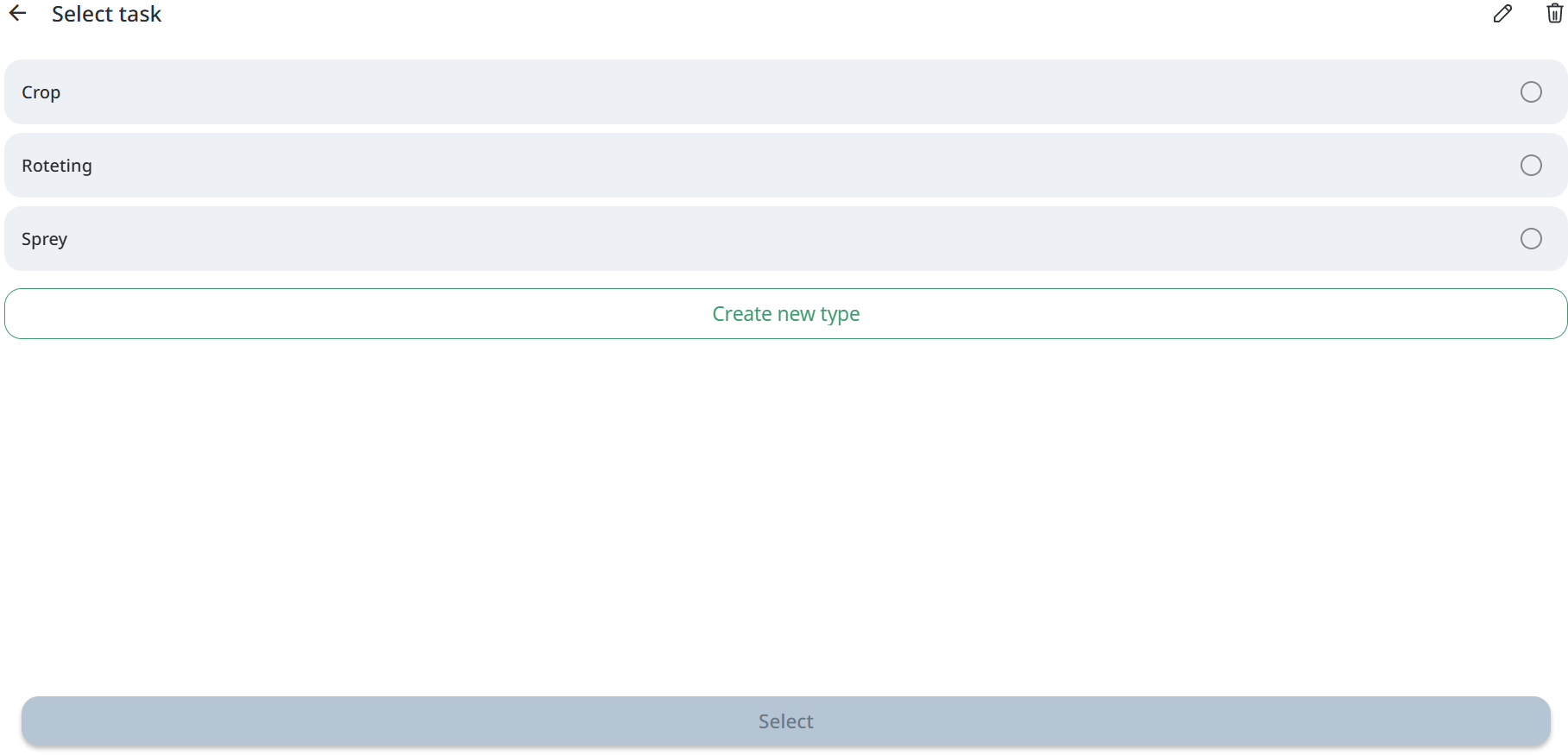
- Then select data.
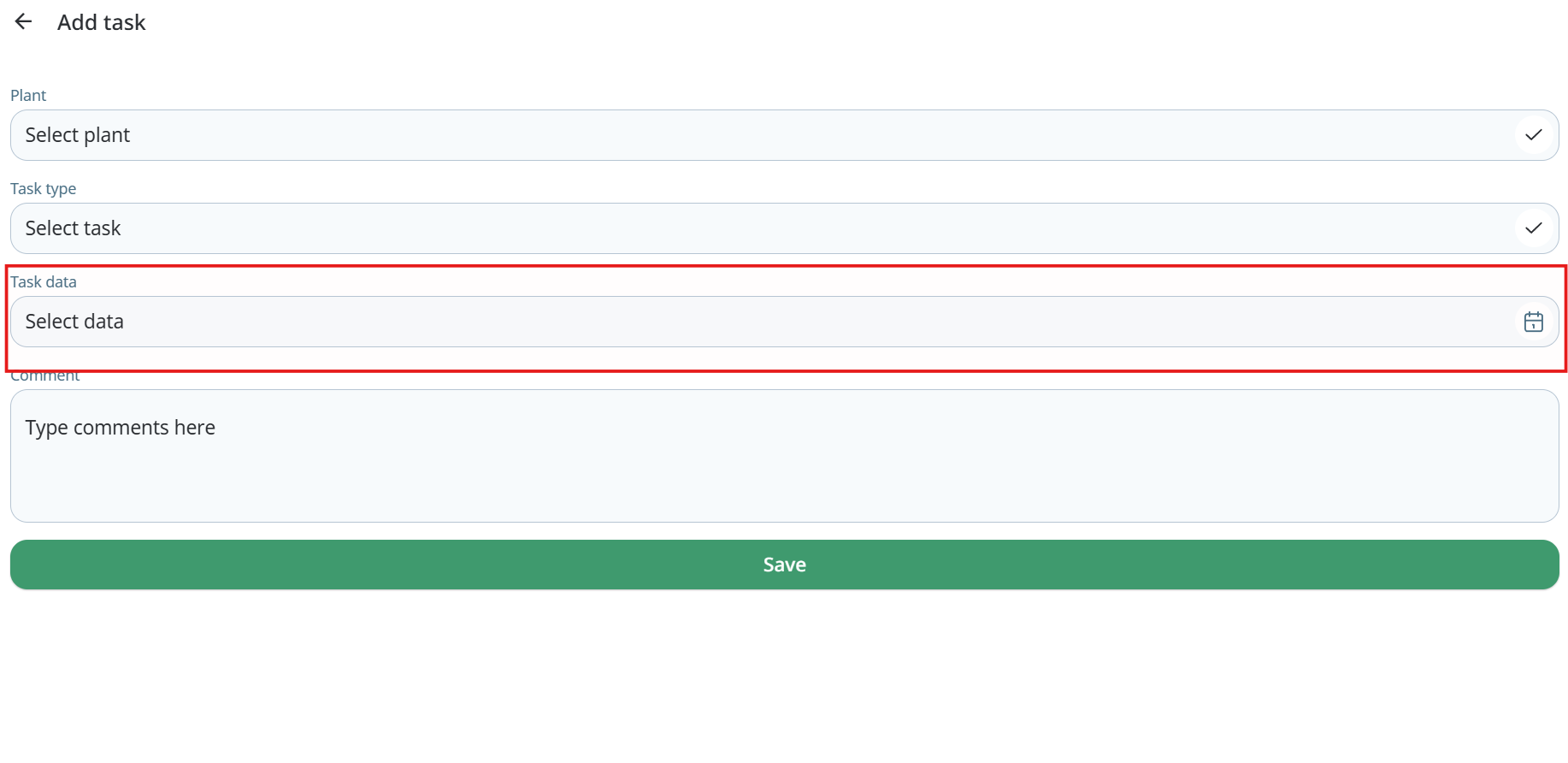
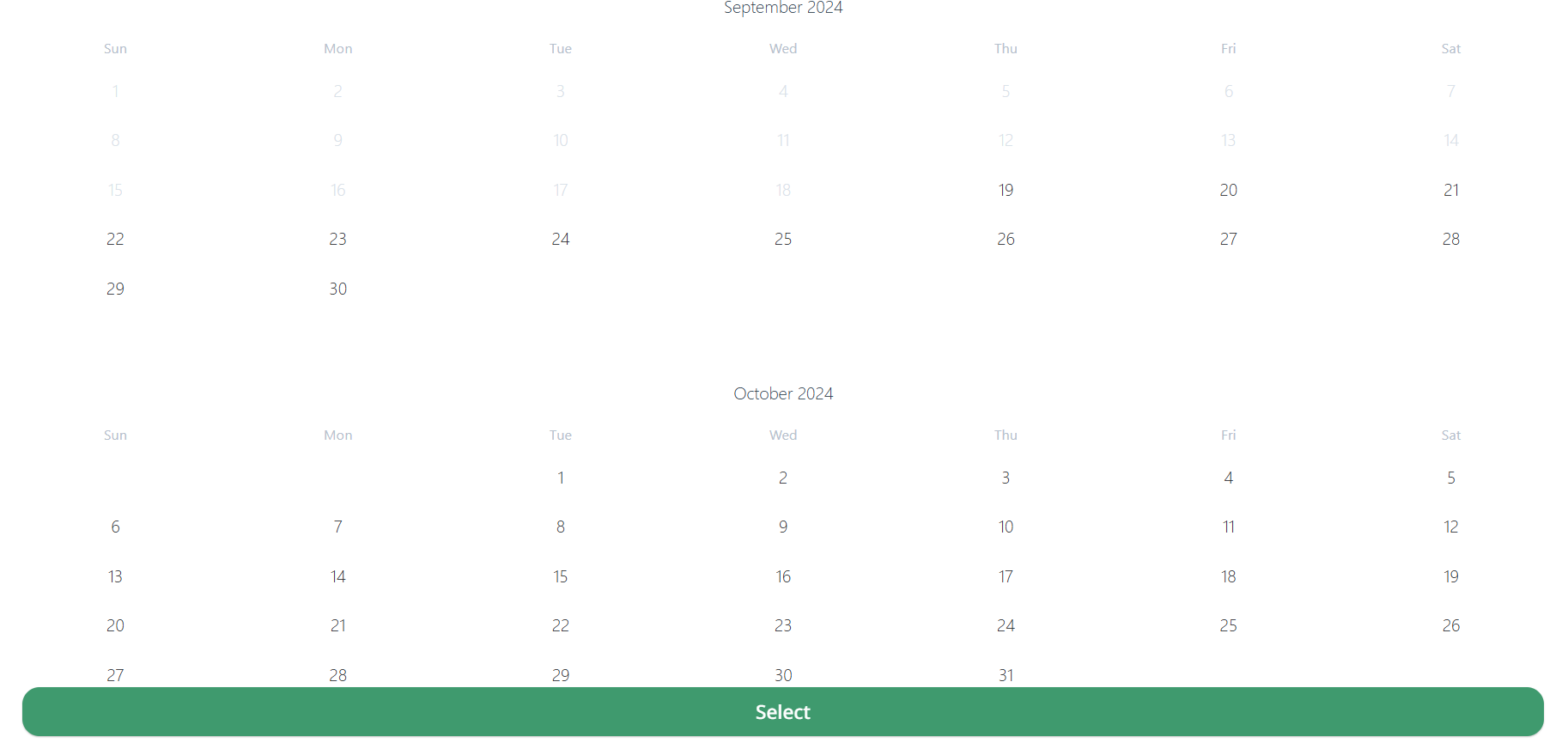
- Also user can write comment to the task.
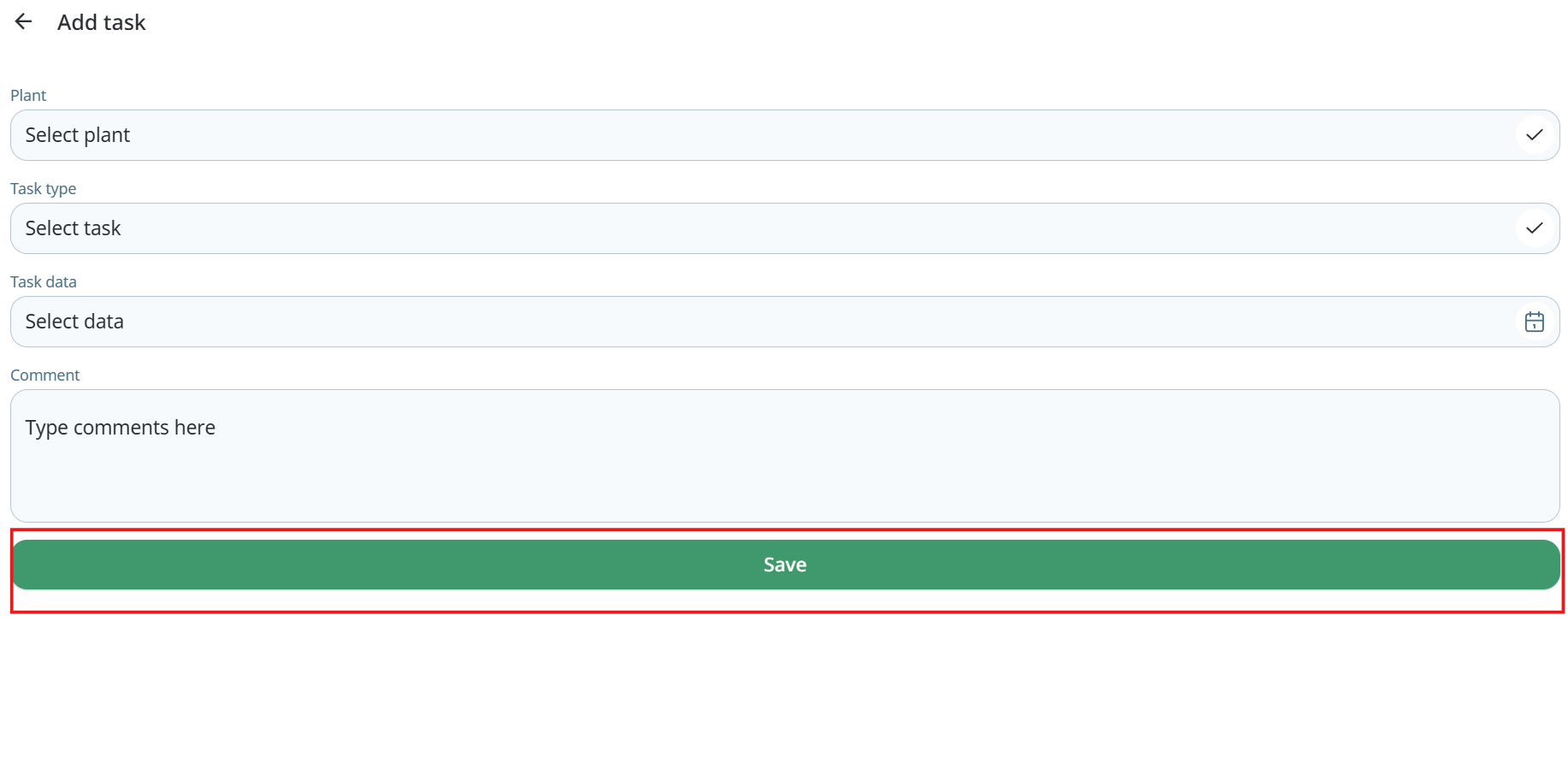
- And next tap “Save” button for task creating.
Editing task
- To edit task user needs to tap on the “Agrinotes” icon between “Modules” and “Settings” icons on the bottom panel of the App.
- Then user will see Agrinotes screen, on this screen user has to tap “Tasks” on the top left corner.
- On the opened screen user can see calendar with tasks he made.
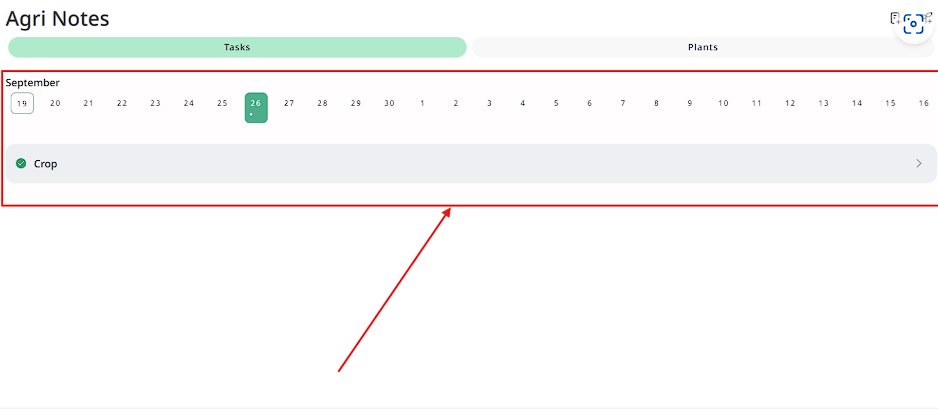
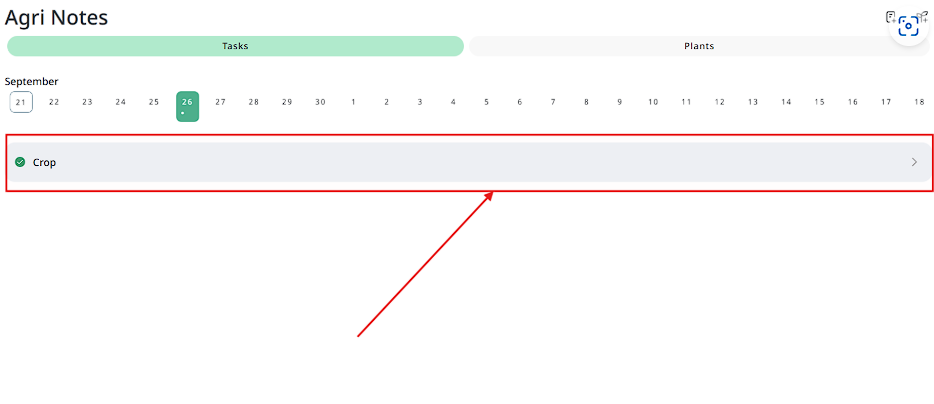
- Next users need to tap on the task they want to edit.
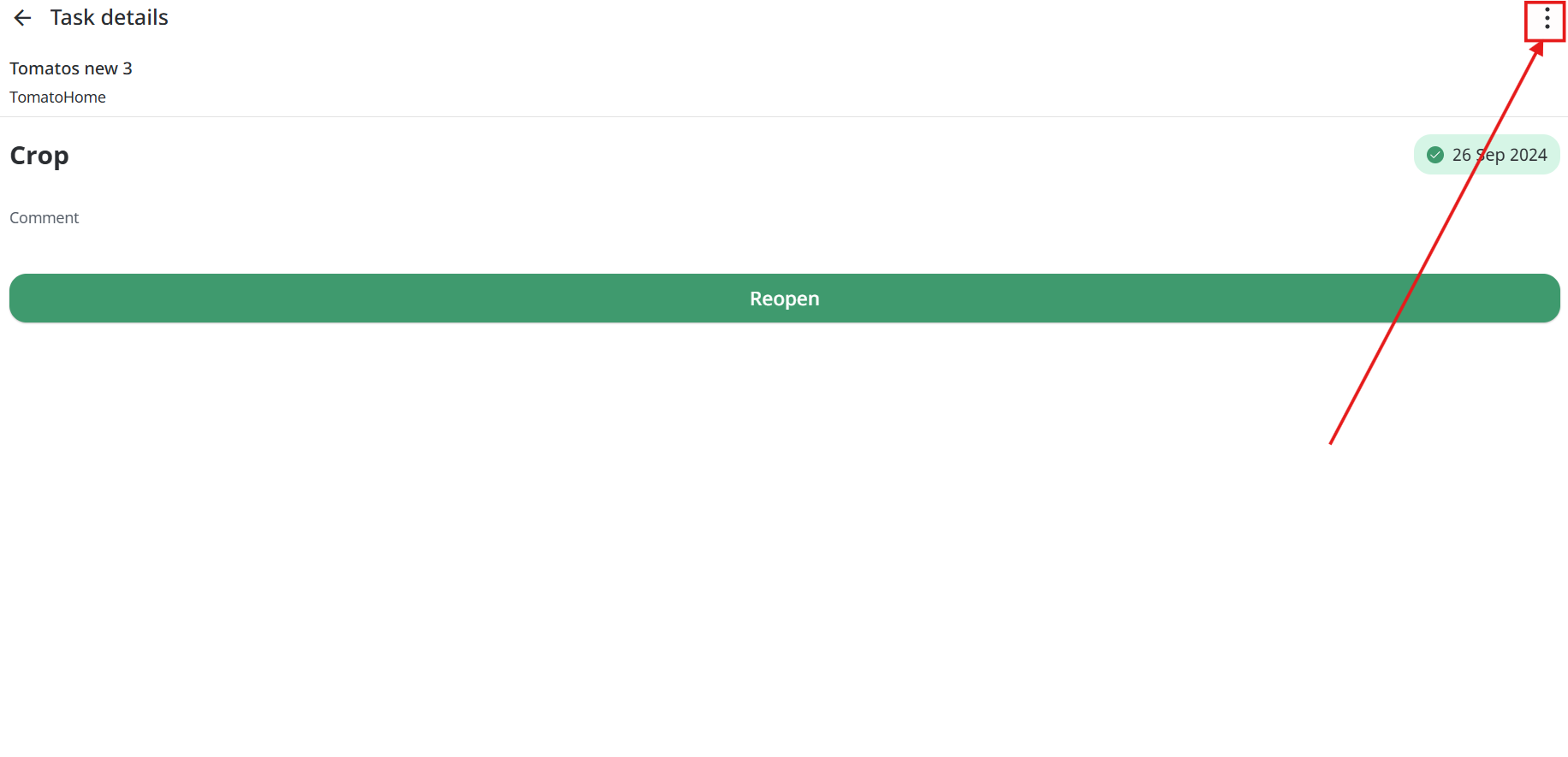
- In the opened window users need to click on the “3 dots” button on the top left corner.
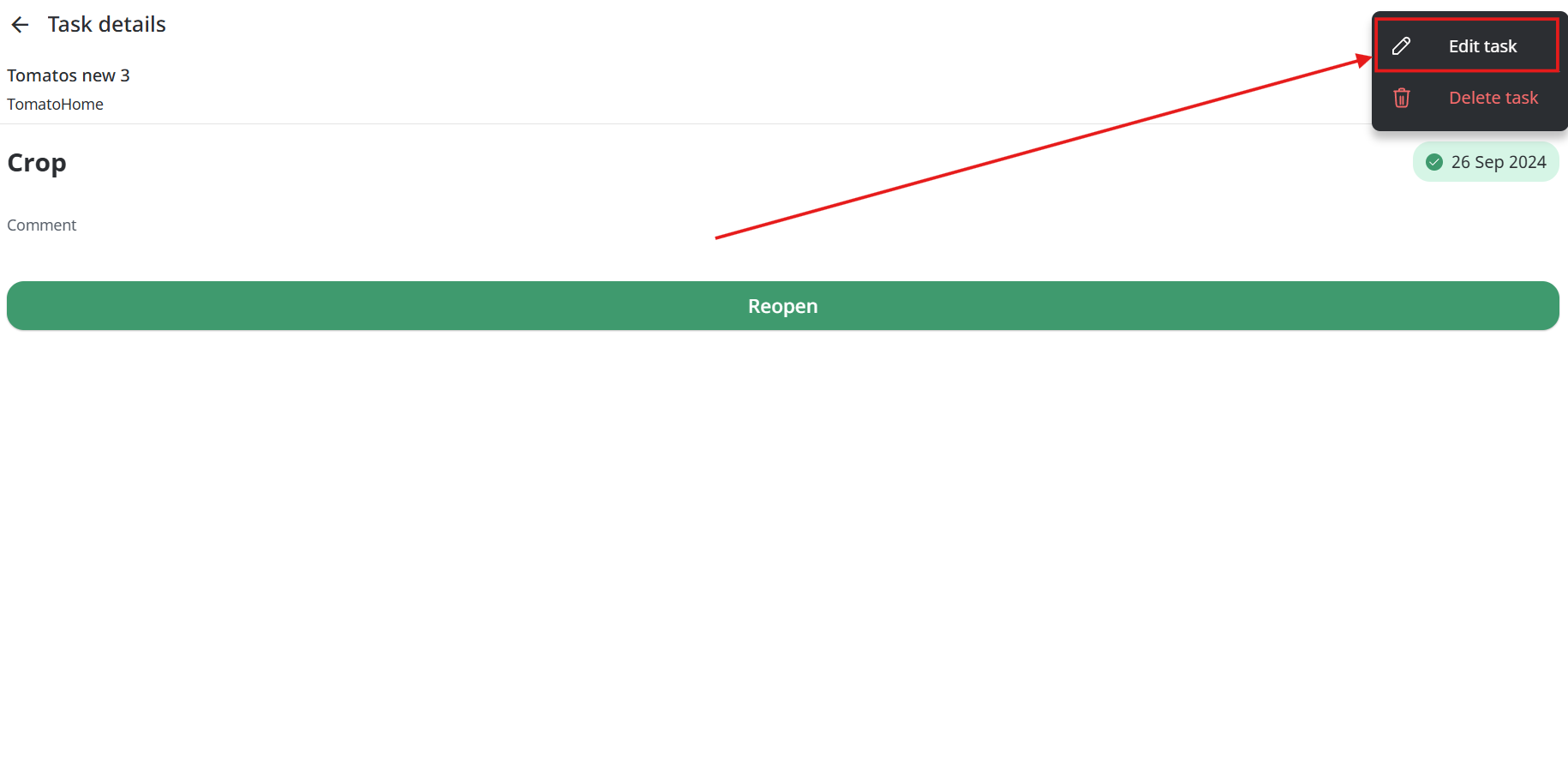
- Next users need to tap “Edit task” button.
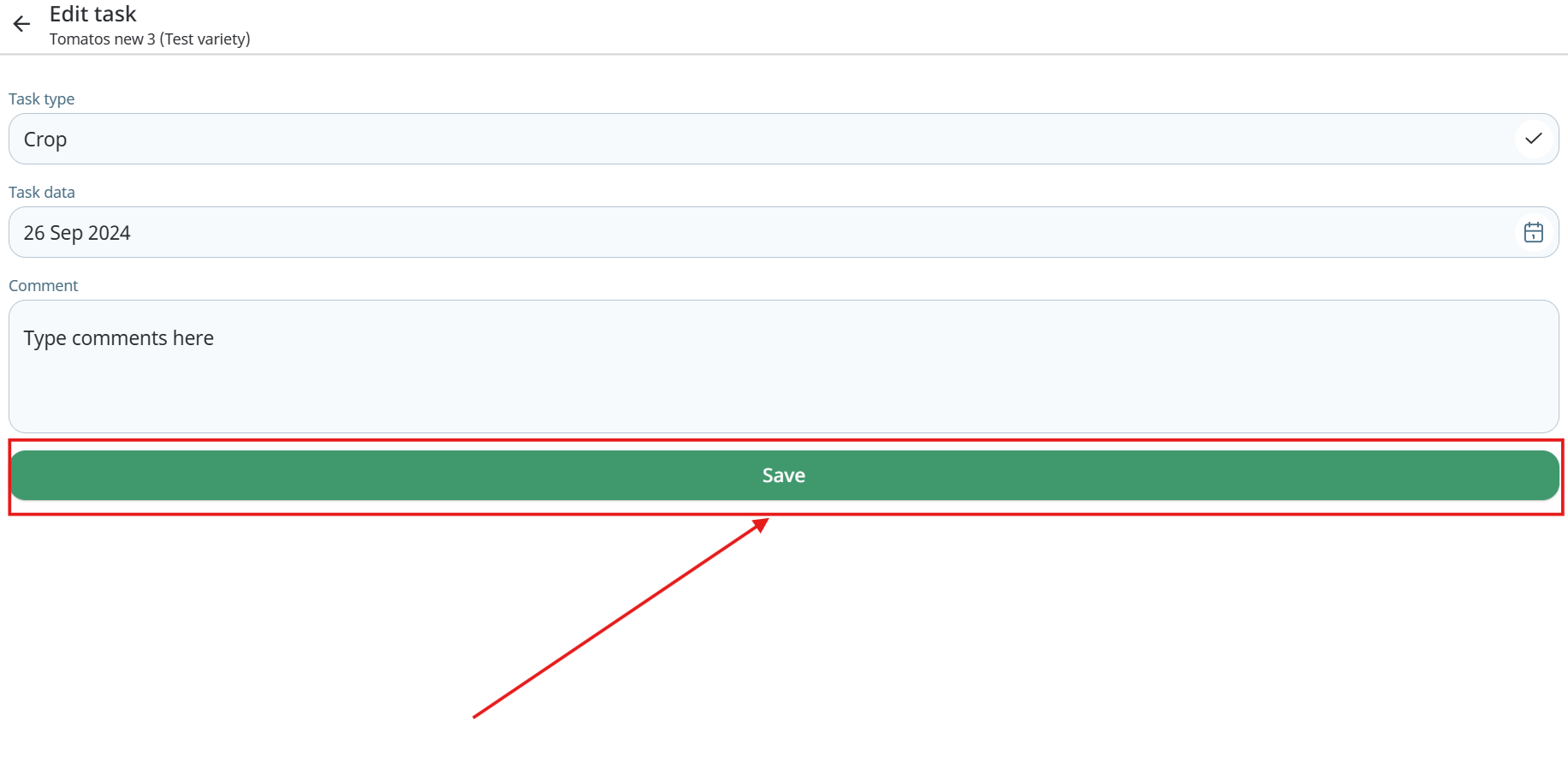
- In the opened screen users can edit task type, task data and comment.
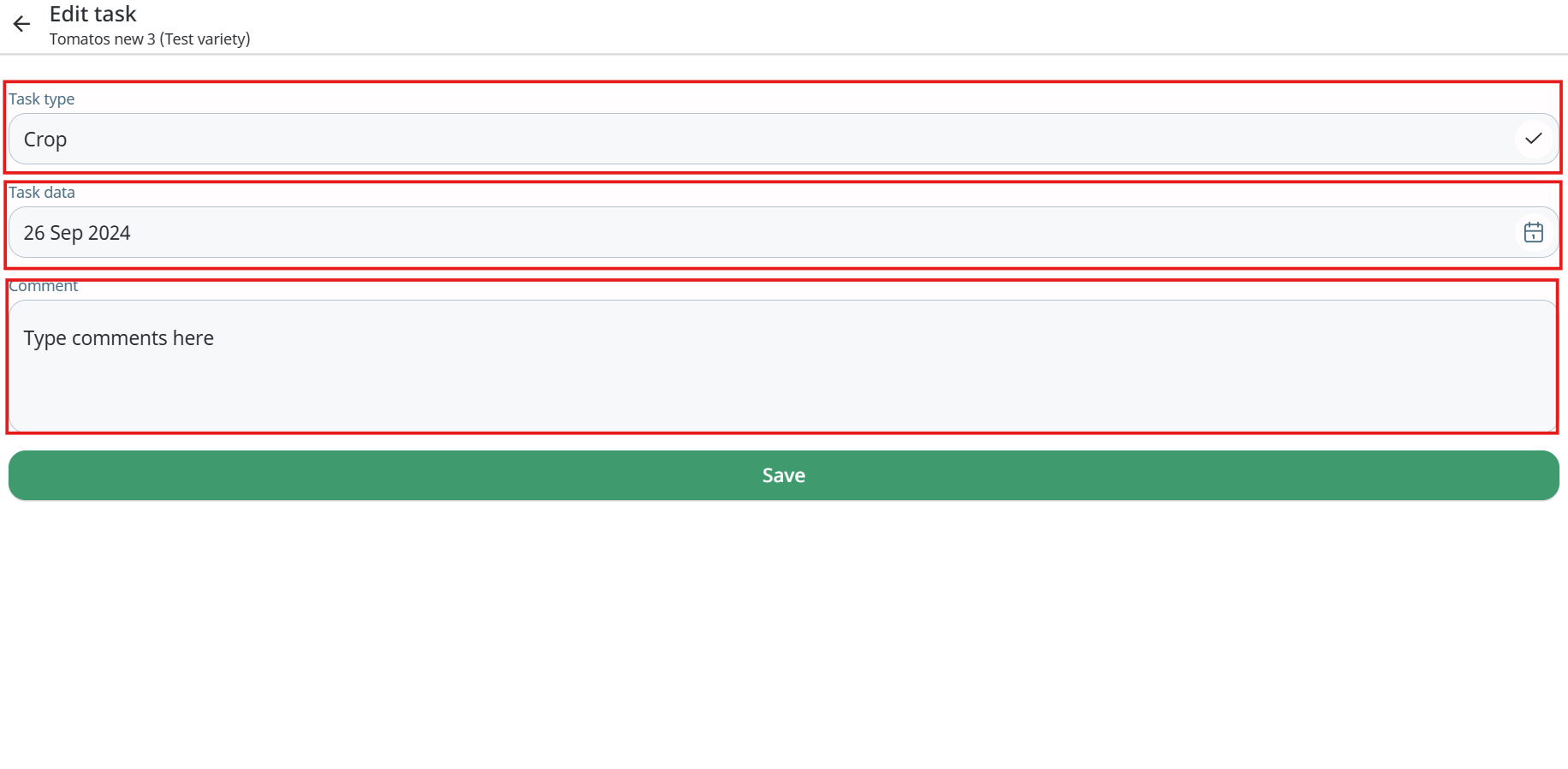
- To save edits users need to click on the “Save” button.
Delete task
- To delete task user needs to tap on the “Agrinotes” icon between “Modules” and “Settings” icons on the bottom panel of the App.
- Then user will see Agrinotes screen, on this screen user has to tap “Tasks” on the top left corner.
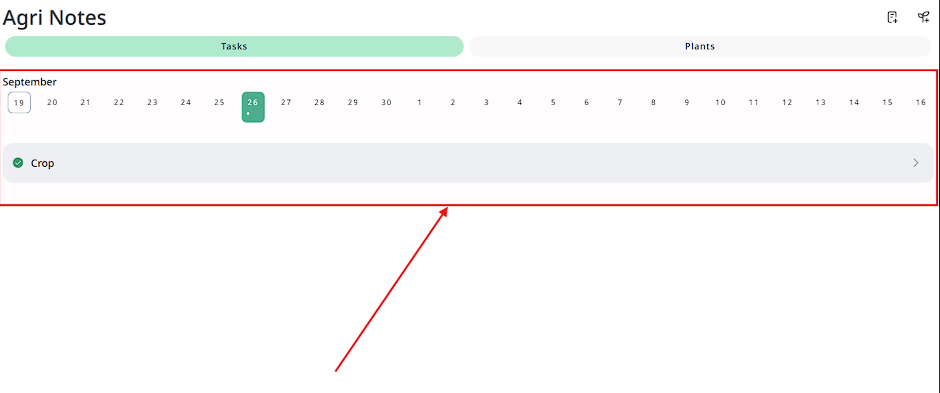
- On the opened screen user can see calendar with tasks he made.
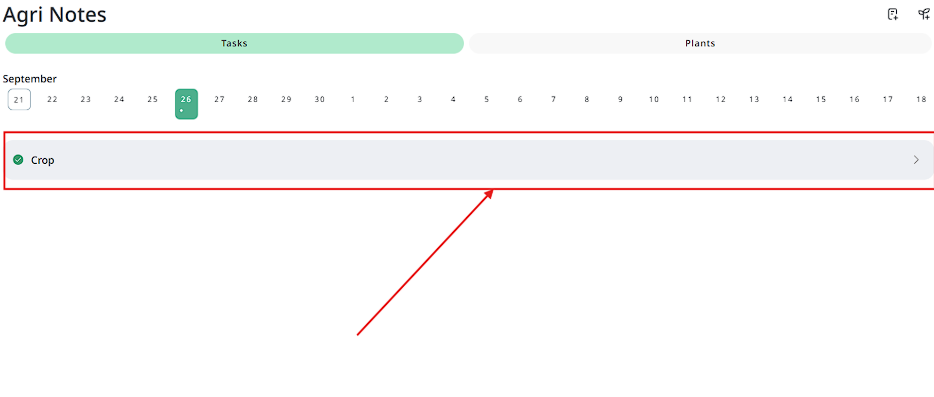
- Next users need to tap on the task they want to delete.
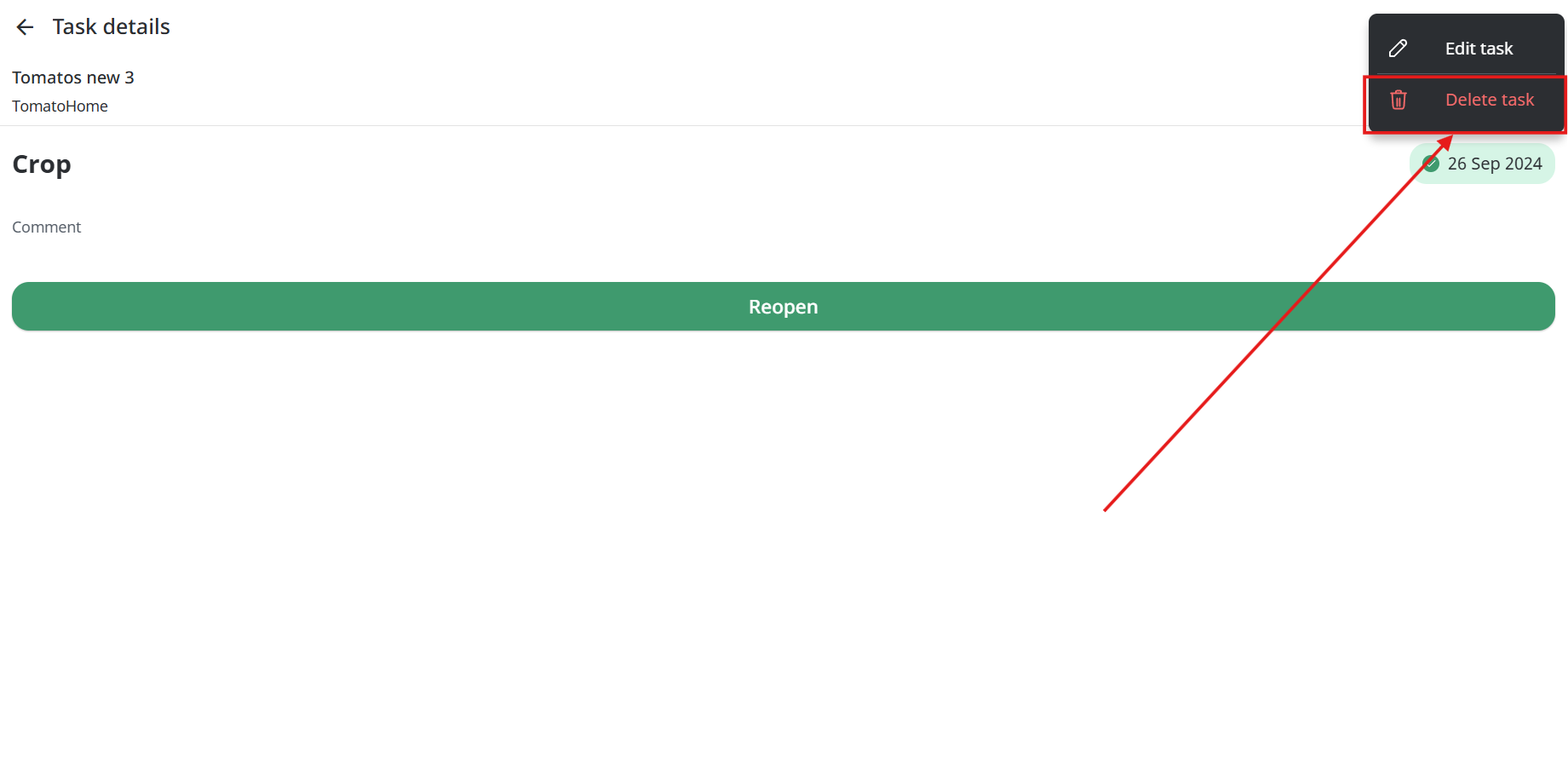
- In the opened window users need to click on the “3 dots” button on the top left corner.
- Next users need to tap “Delete task” button.
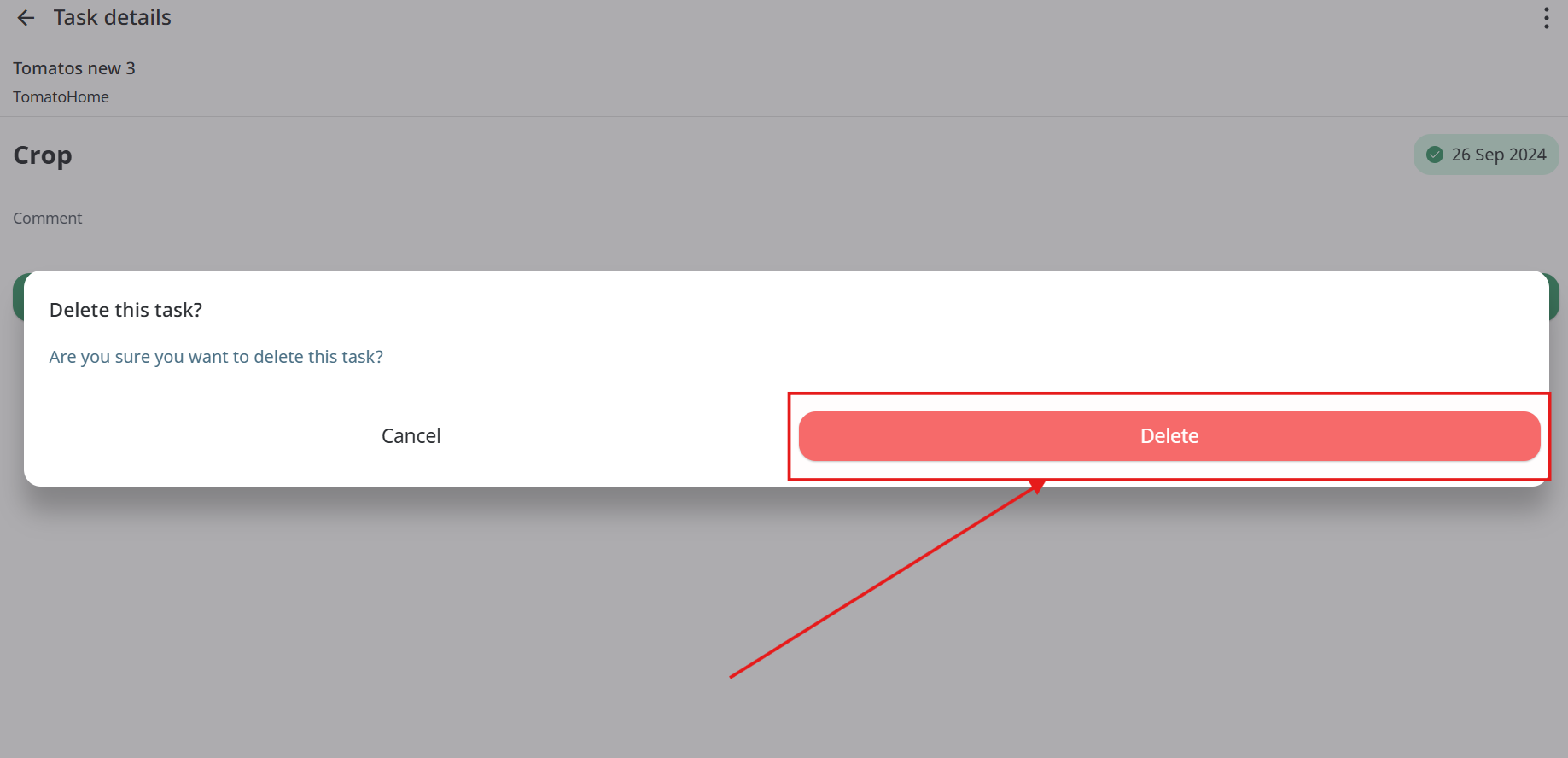
- Tap the “Delete” button to confirm deleting.
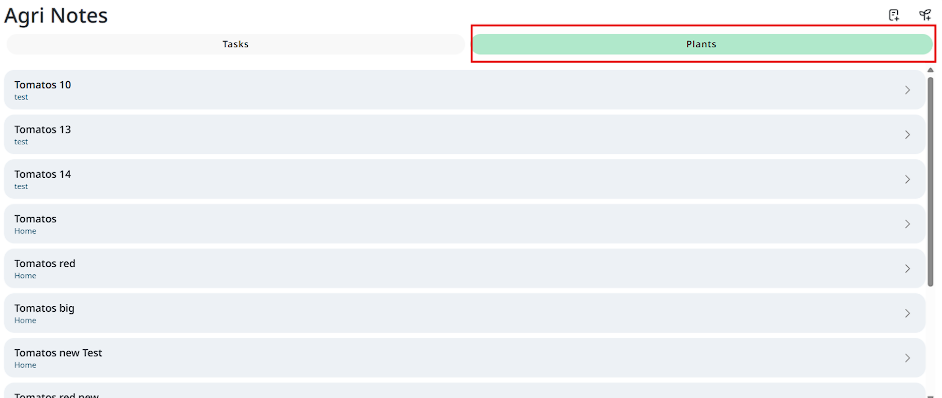
Chapter “Plants”
- To find chapter “Plants” user needs to tap on the “Agrinotes” icon between “Modules” and “Settings” icons on the bottom panel of the App.
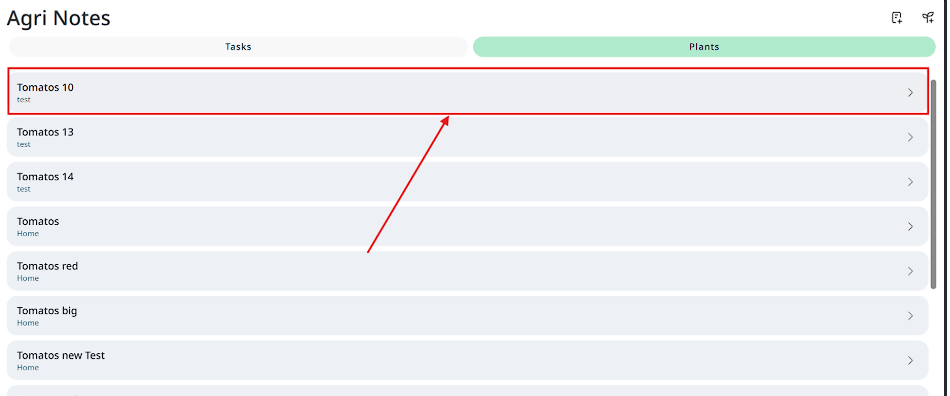
- In the opened window user will see “Plants” chapter, where user can see his plants.
Creating plant
- To create plant user needs to tap on the “Agrinotes” icon between “Modules” and “Settings” icons on the bottom panel of the App.
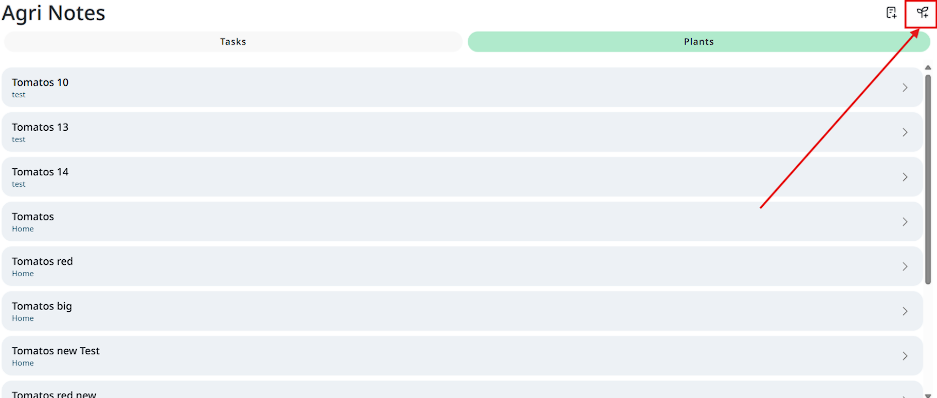
- Next user has to tap on the “Create plant” button on the top right corner.
- Next user needs to name his plant.
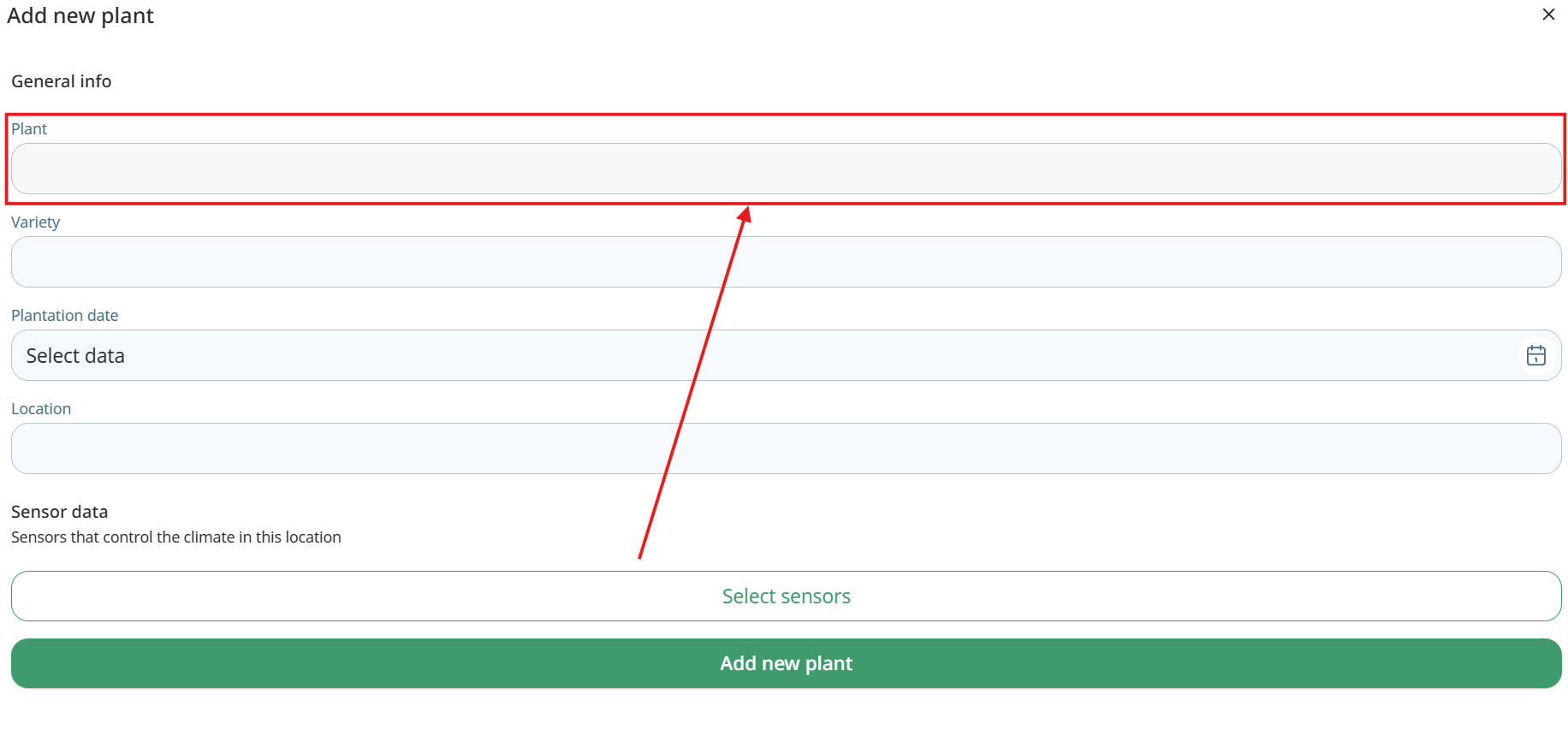
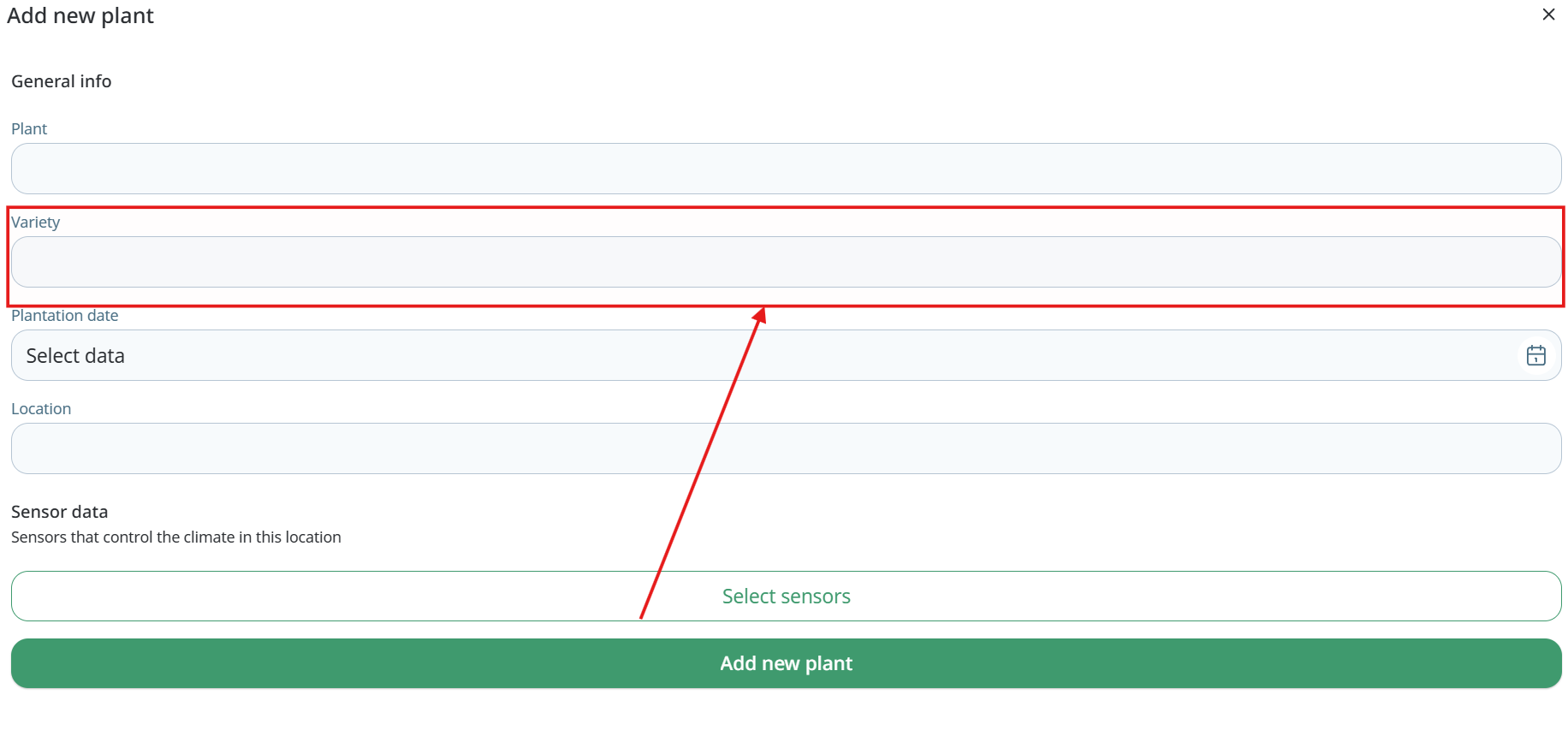
- Next user needs to text variety.
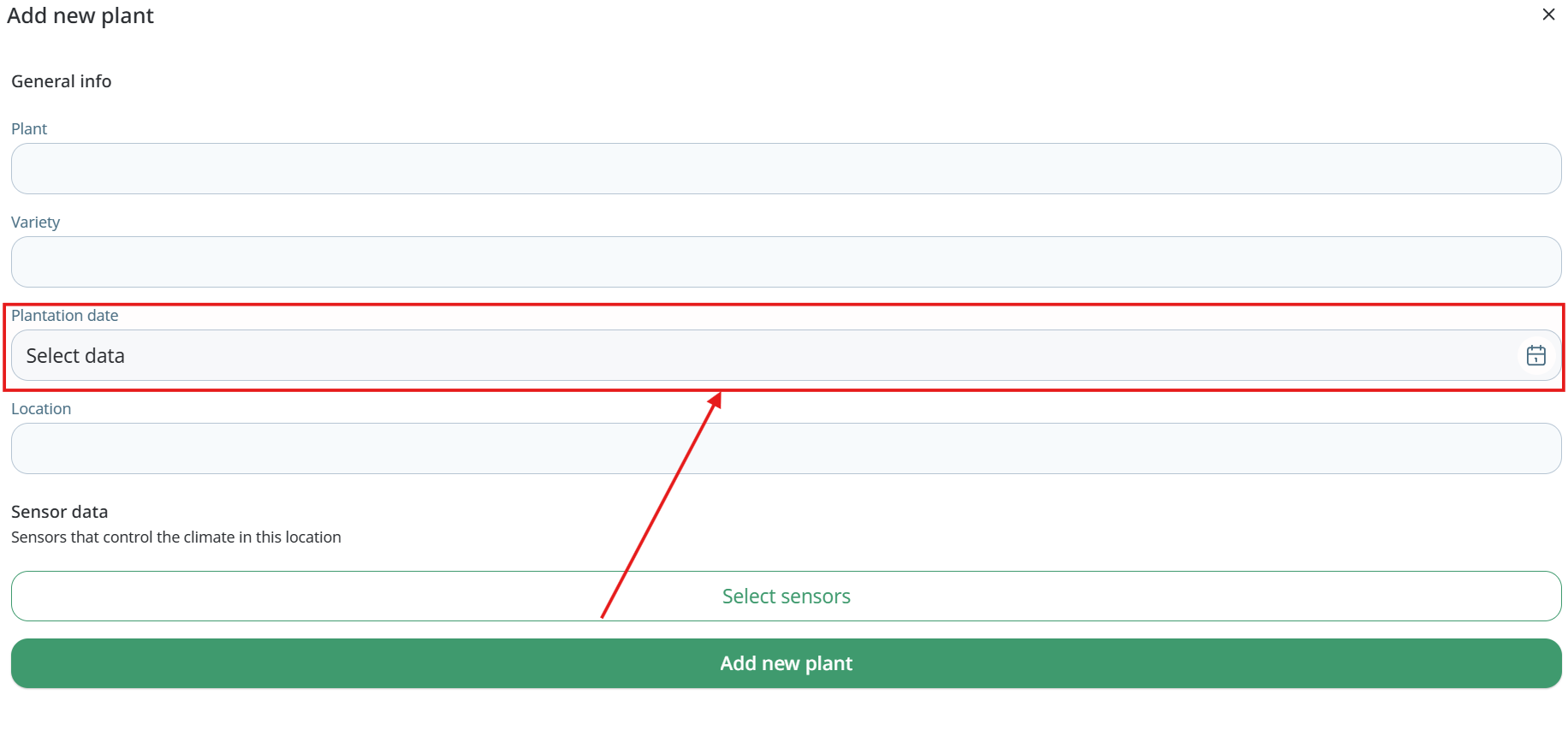
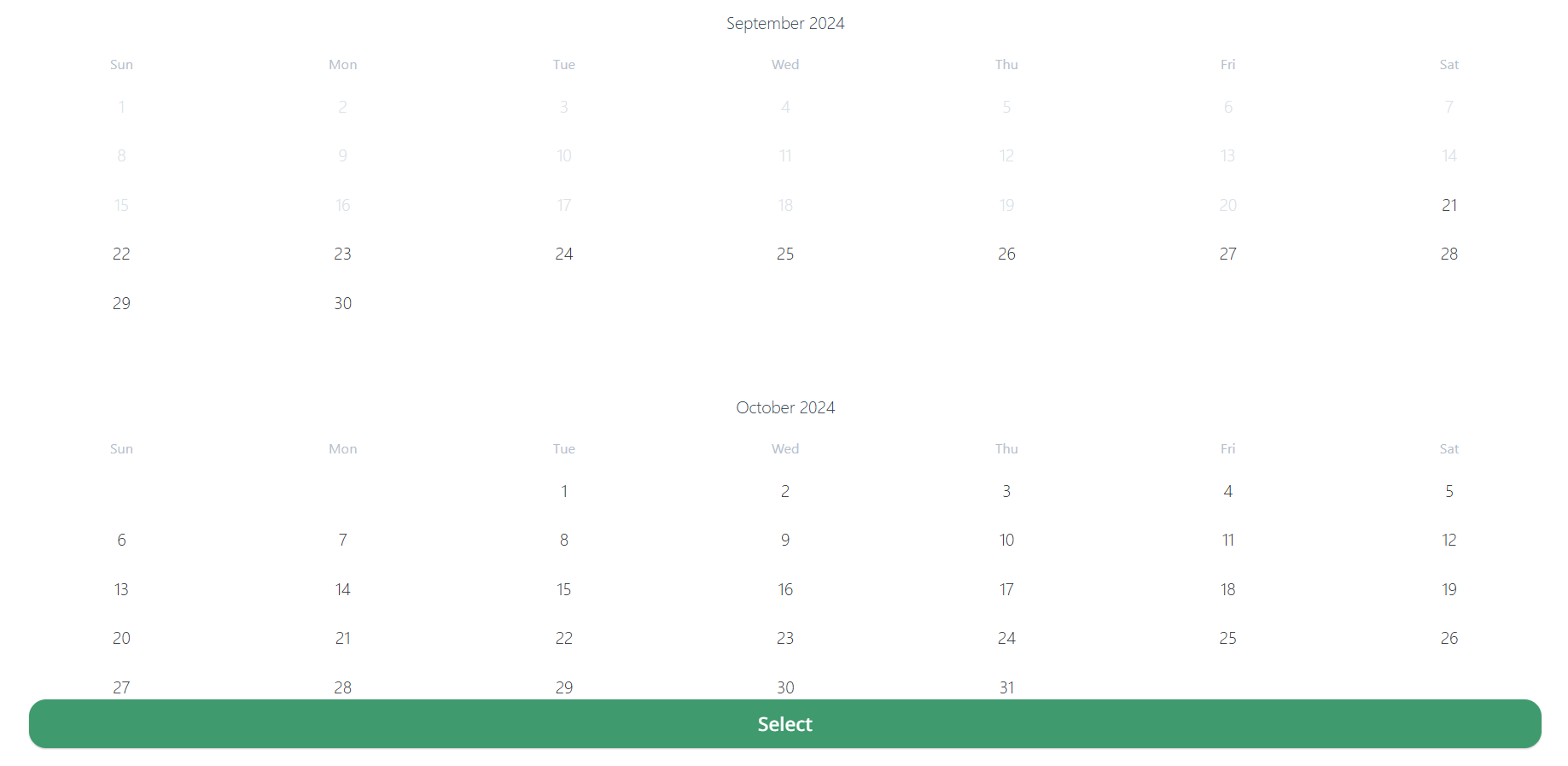
- Then select plantation date.
- Next user needs to write plant location.
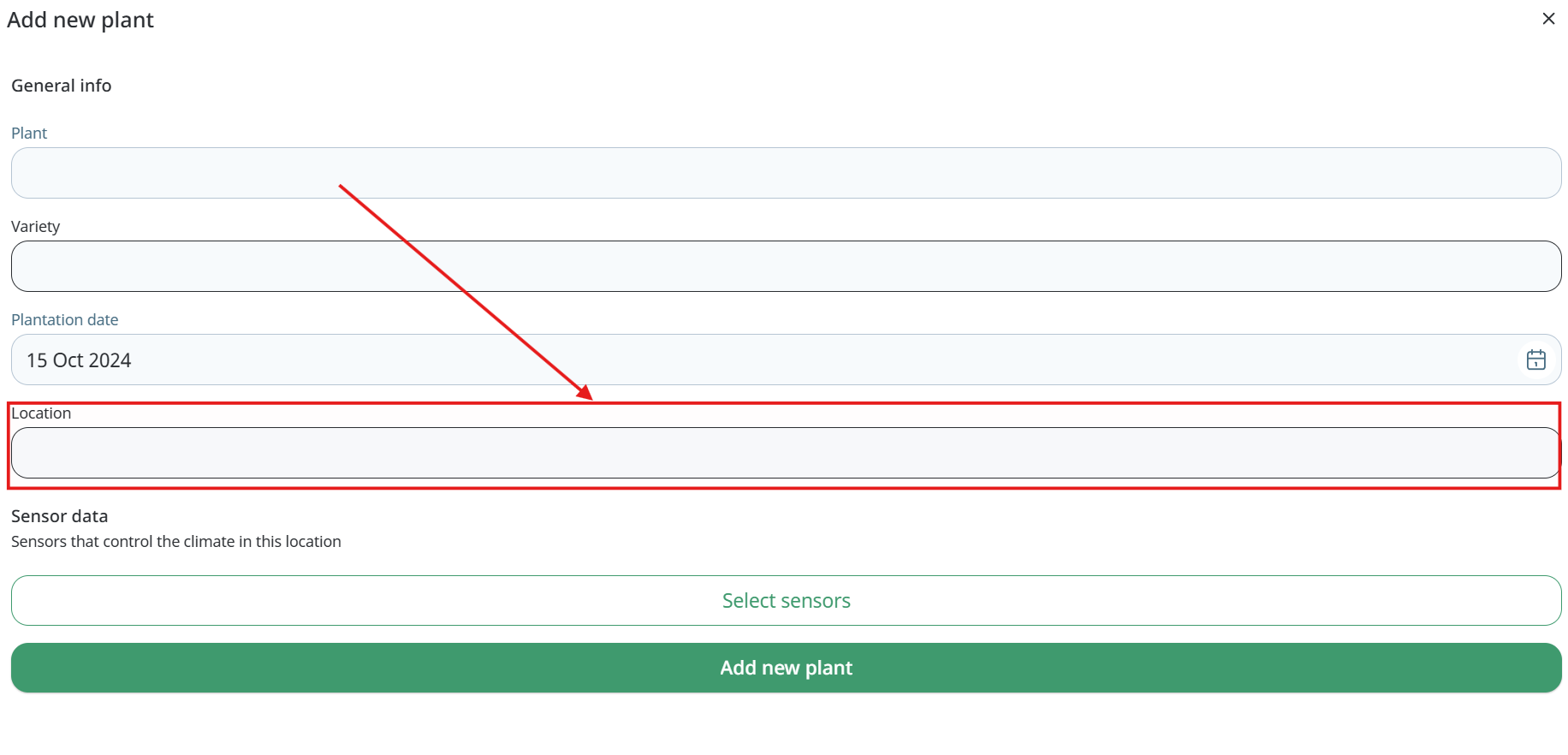
- Then user needs to select sensor.
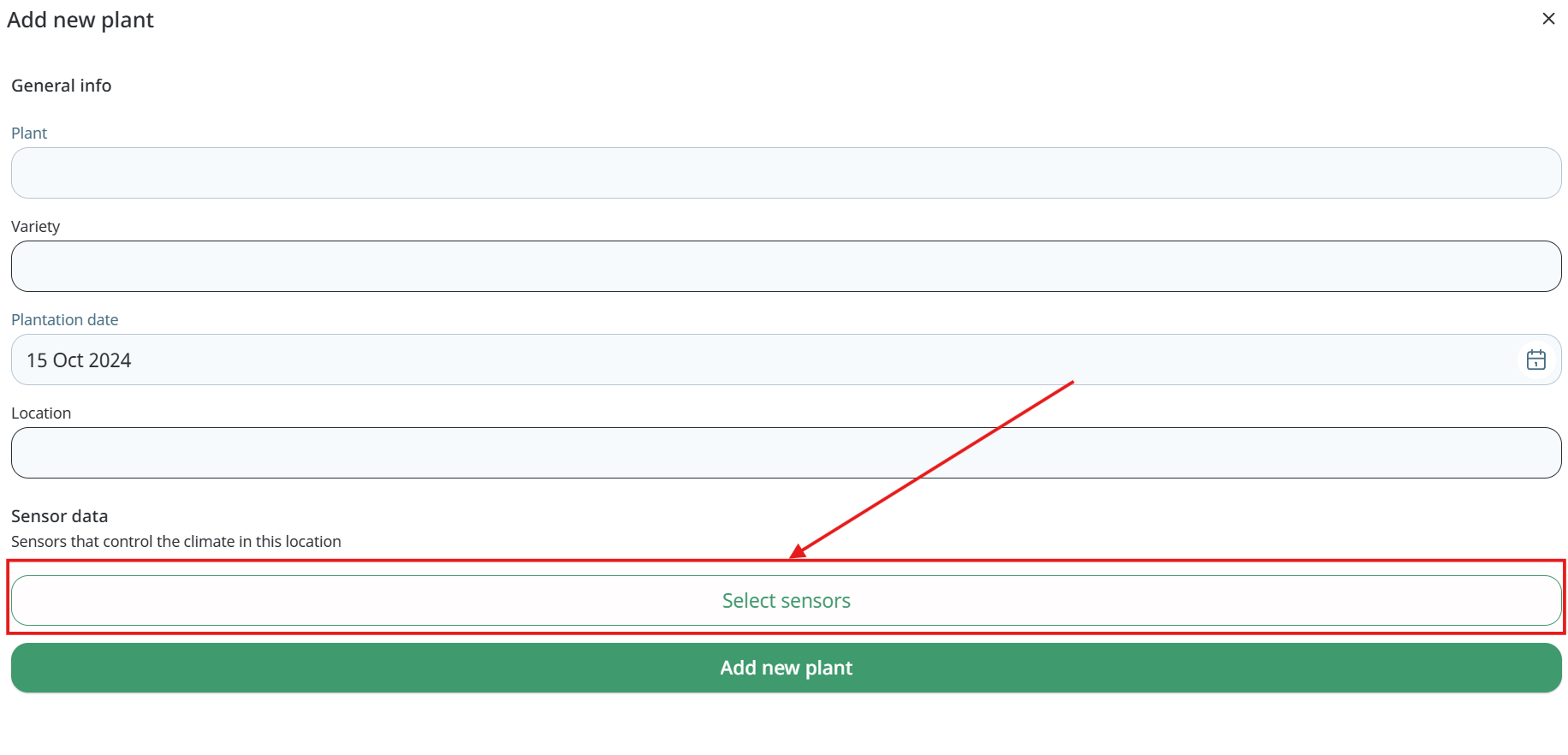
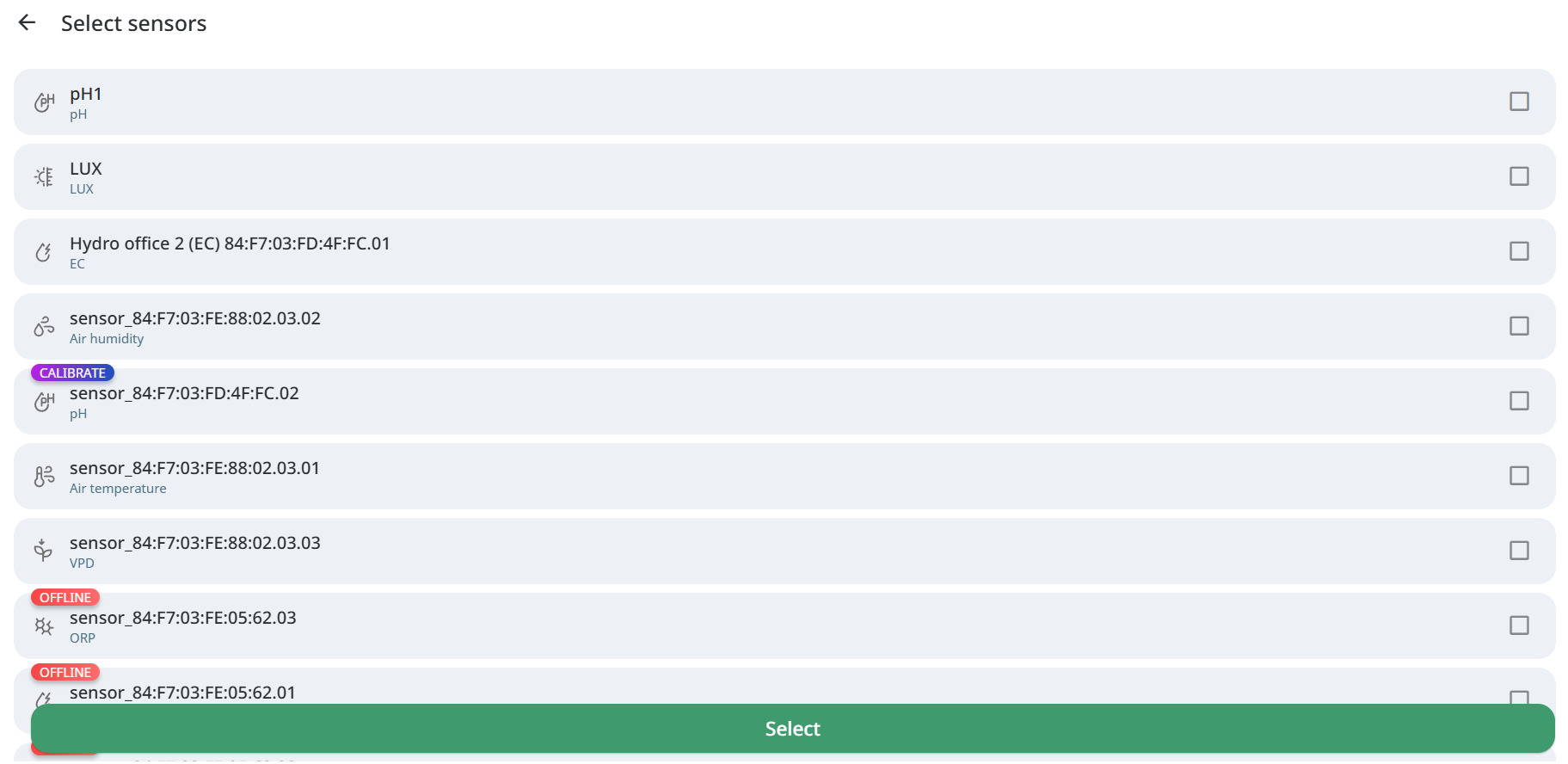
- To save plant user needs to tap “Add new plant” button.
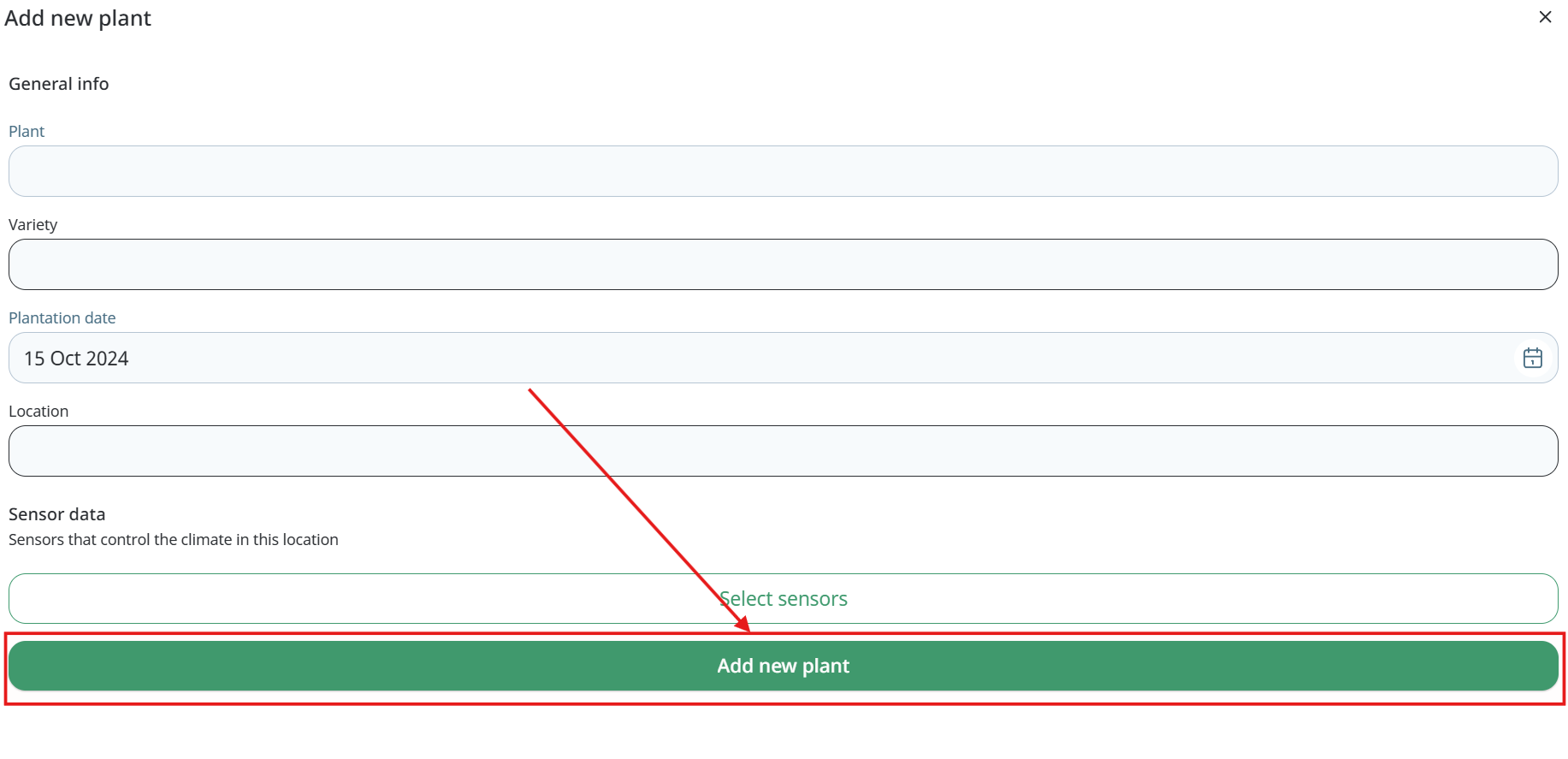
Now users can add a second sensor to the chart (on tab Climate in AgriNotes).
Edit plant
- To edit plant user needs to tap on the “Agrinotes” icon between “Modules” and “Settings” icons on the bottom panel of the App.
- Then user needs to tap the plant he wants to edit.
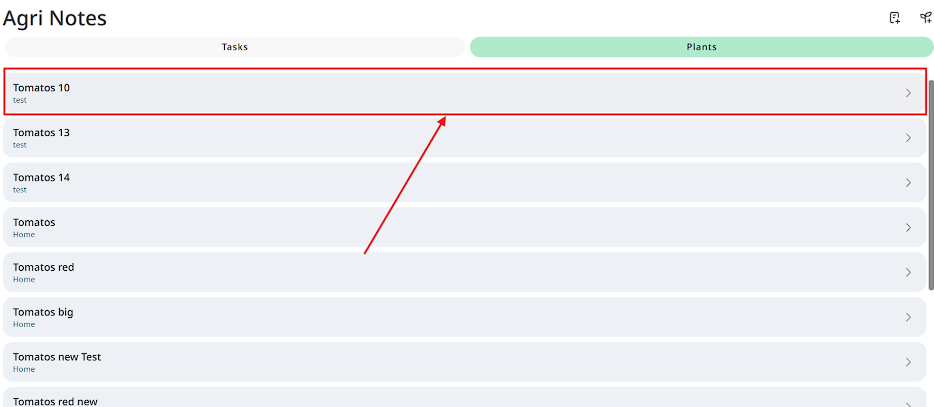
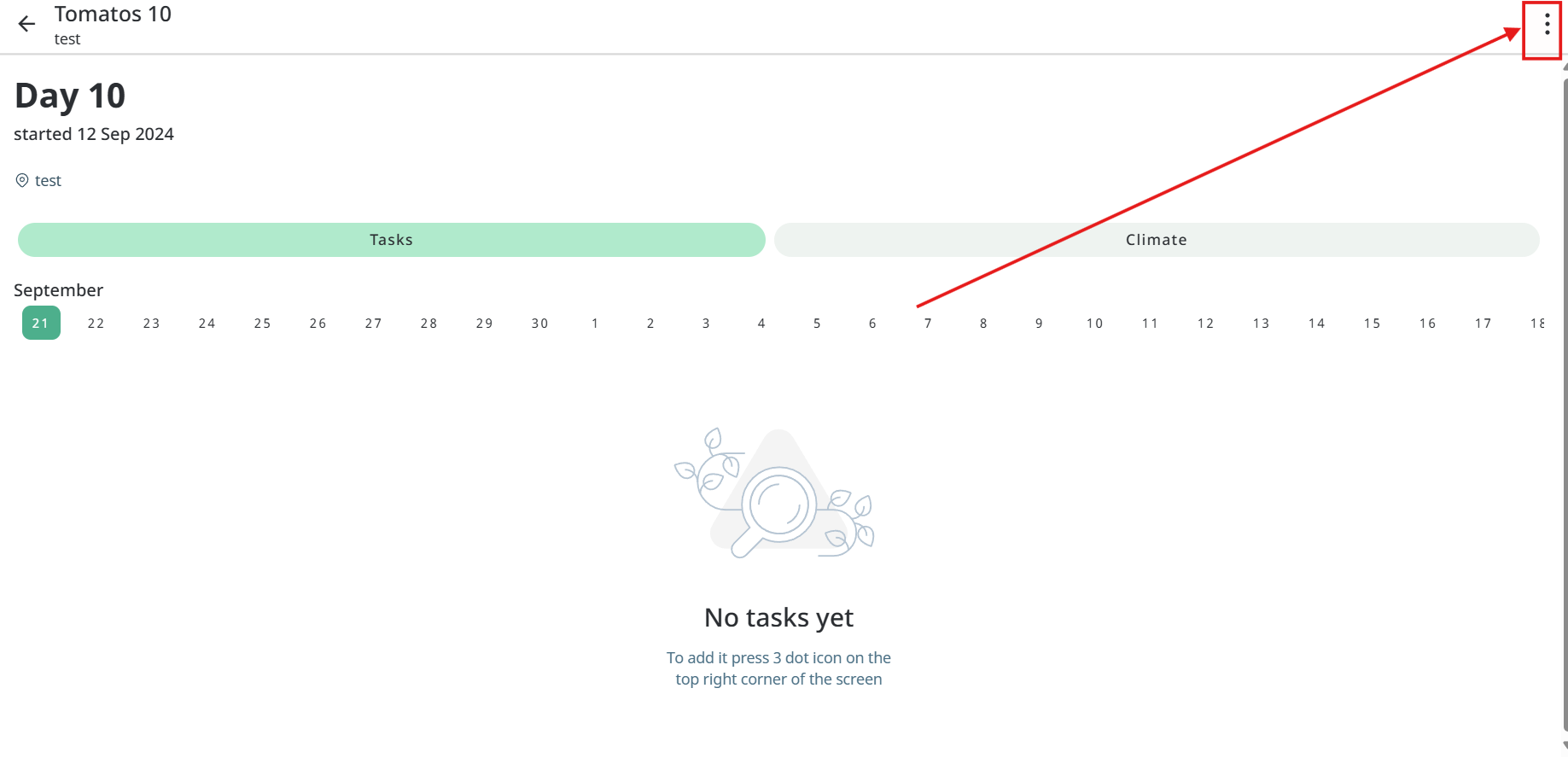
- In the opened window users need to click on the “3 dots” button on the top left corner.
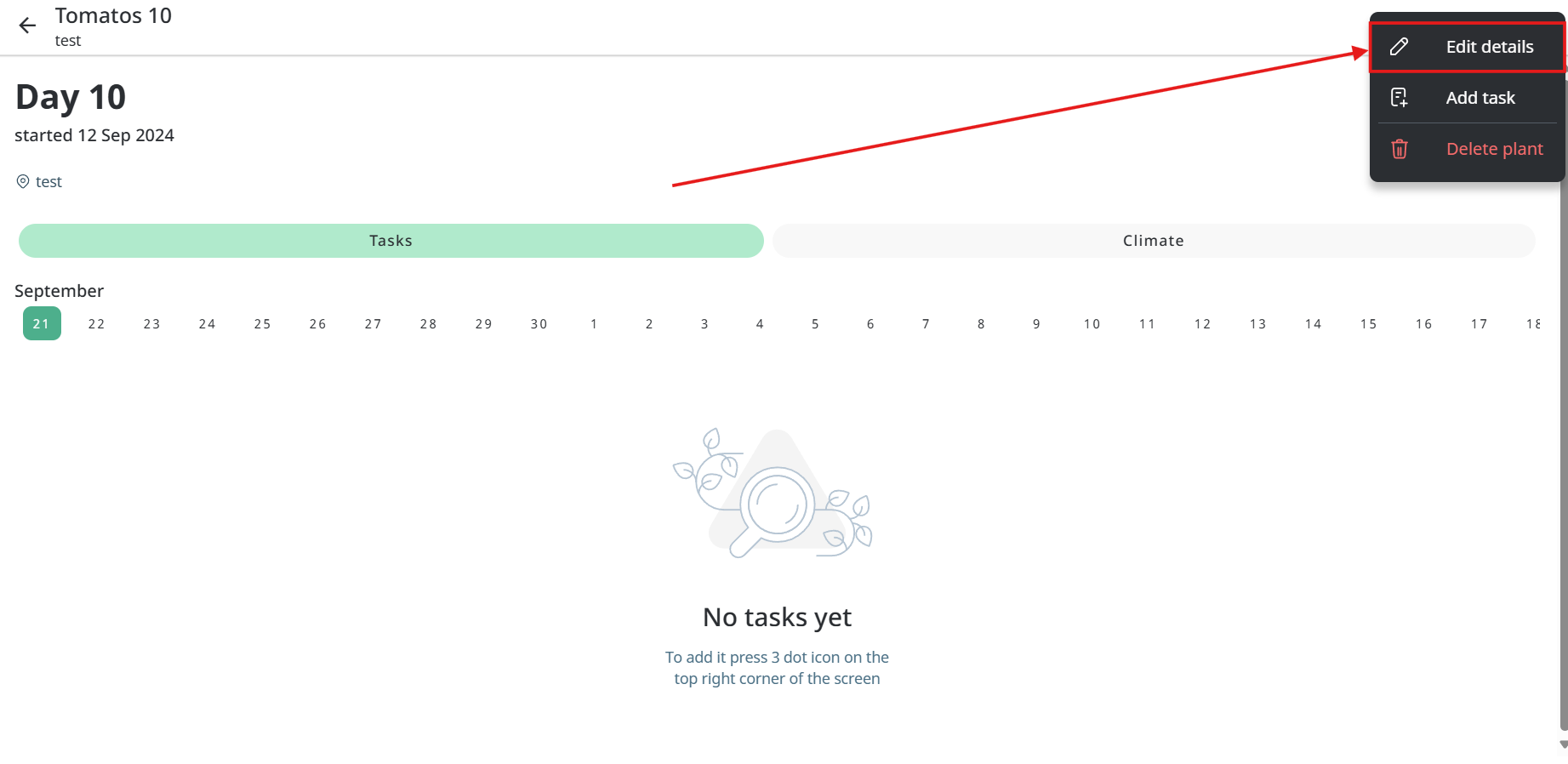
- Then users need to click on the “Edit details” button.
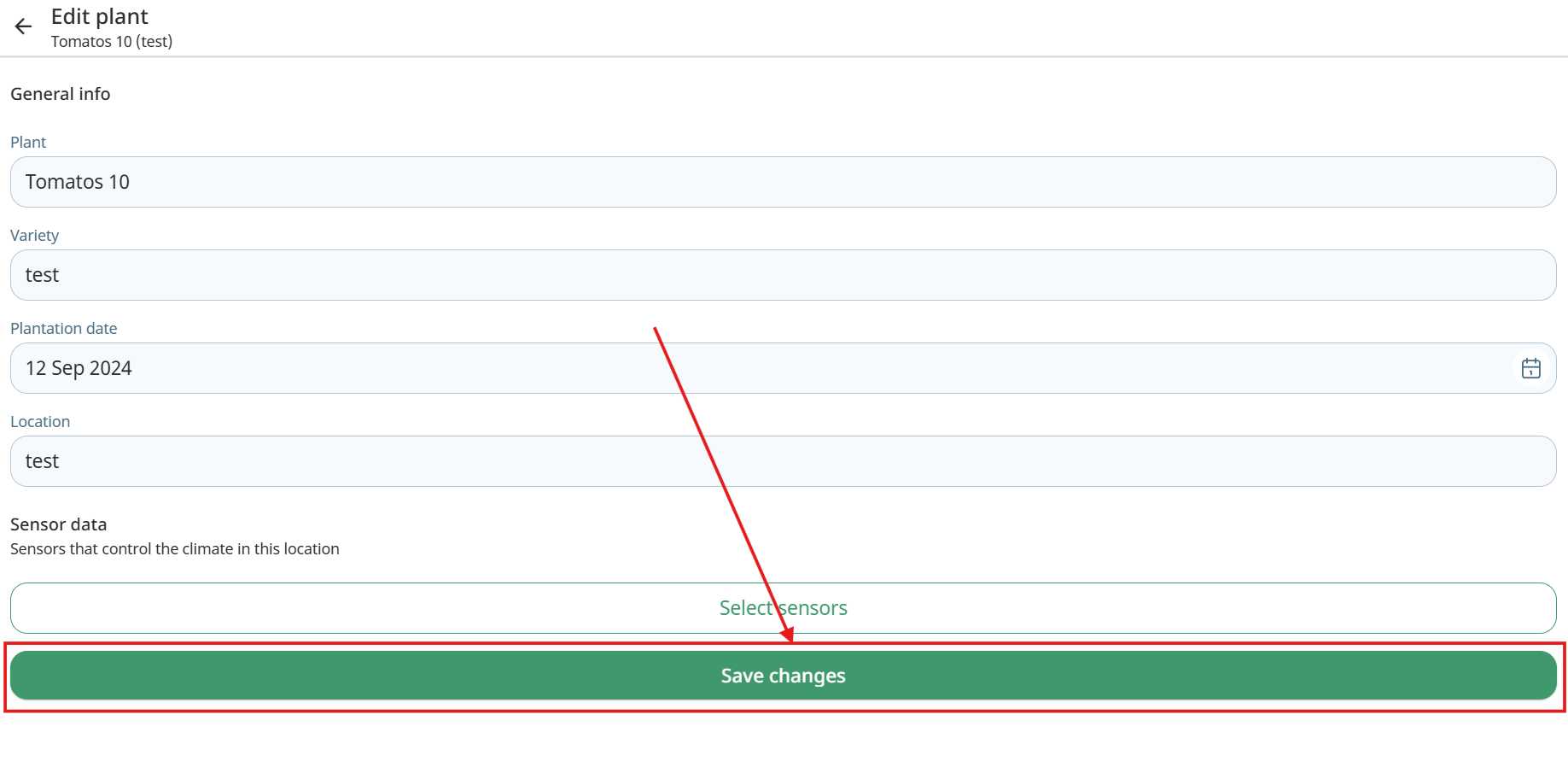
- On the opened screen users can change plant name, variety, plantation date, location and sensors.
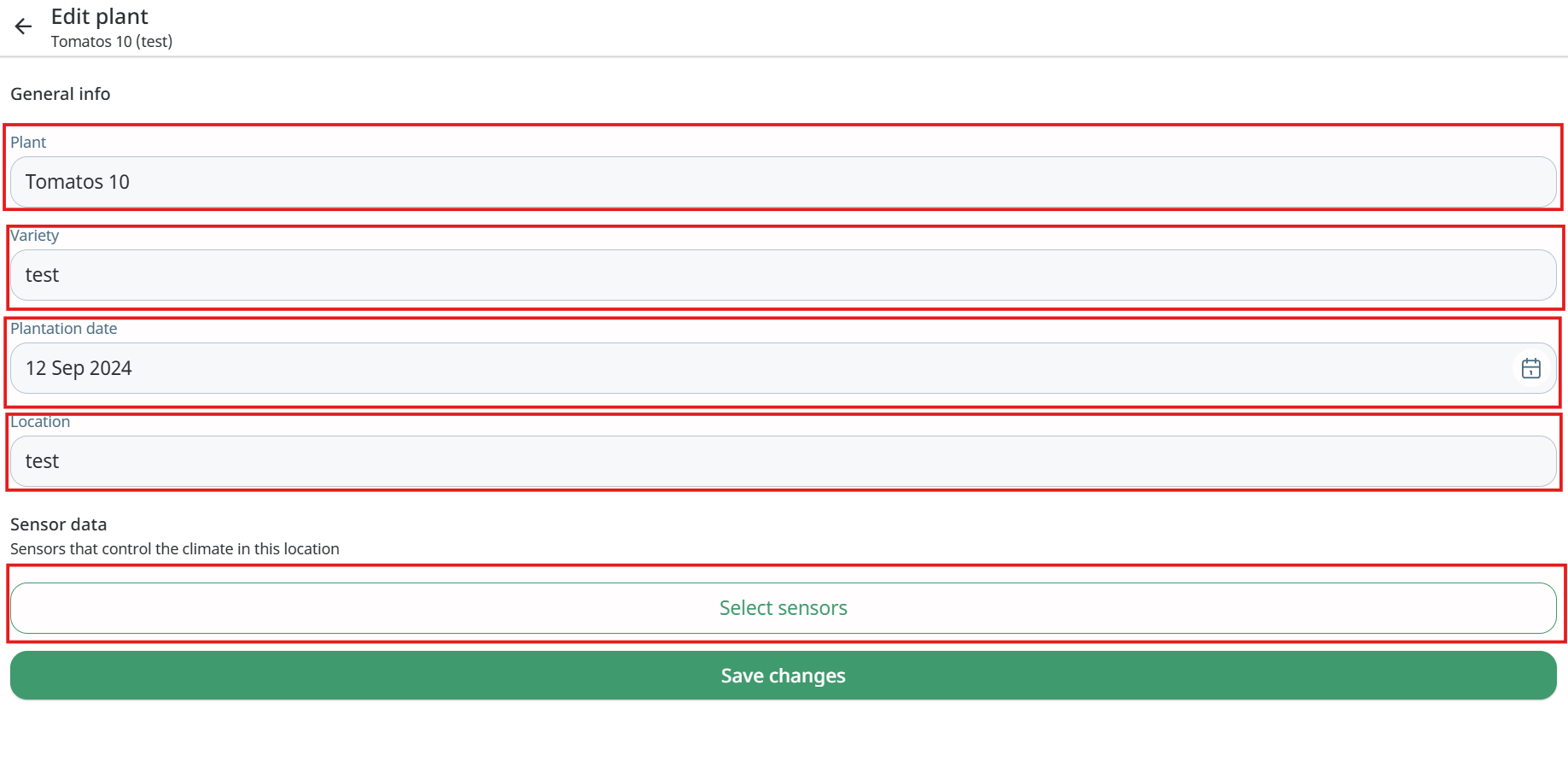
- To save changes users need to click on the “Save changes” button.
Delete plant
- To delete plant user needs to tap on the “Agrinotes” icon between “Modules” and “Settings” icons on the bottom panel of the App.
- Then user needs to tap the plant he wants to edit.
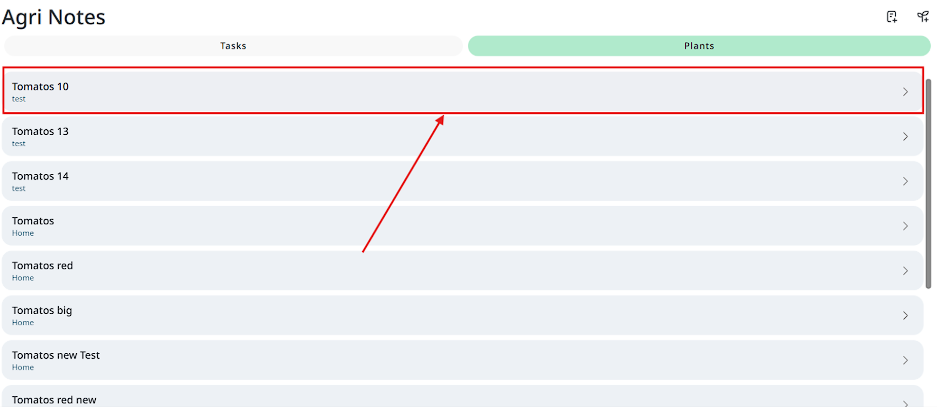
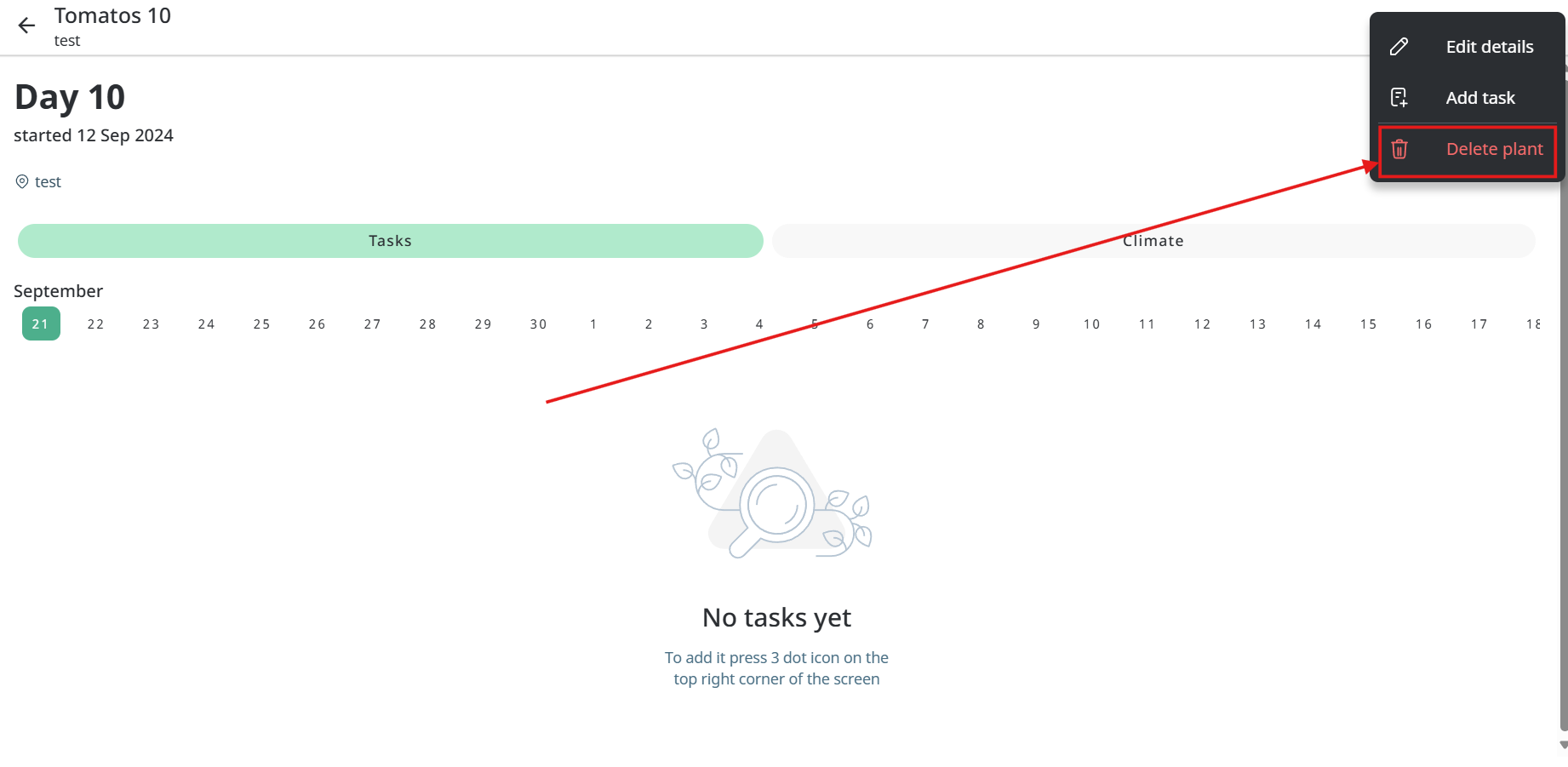
- In the opened window users need to click on the “3 dots” button on the top left corner.
- Then user needs to click on the “Delete” button.
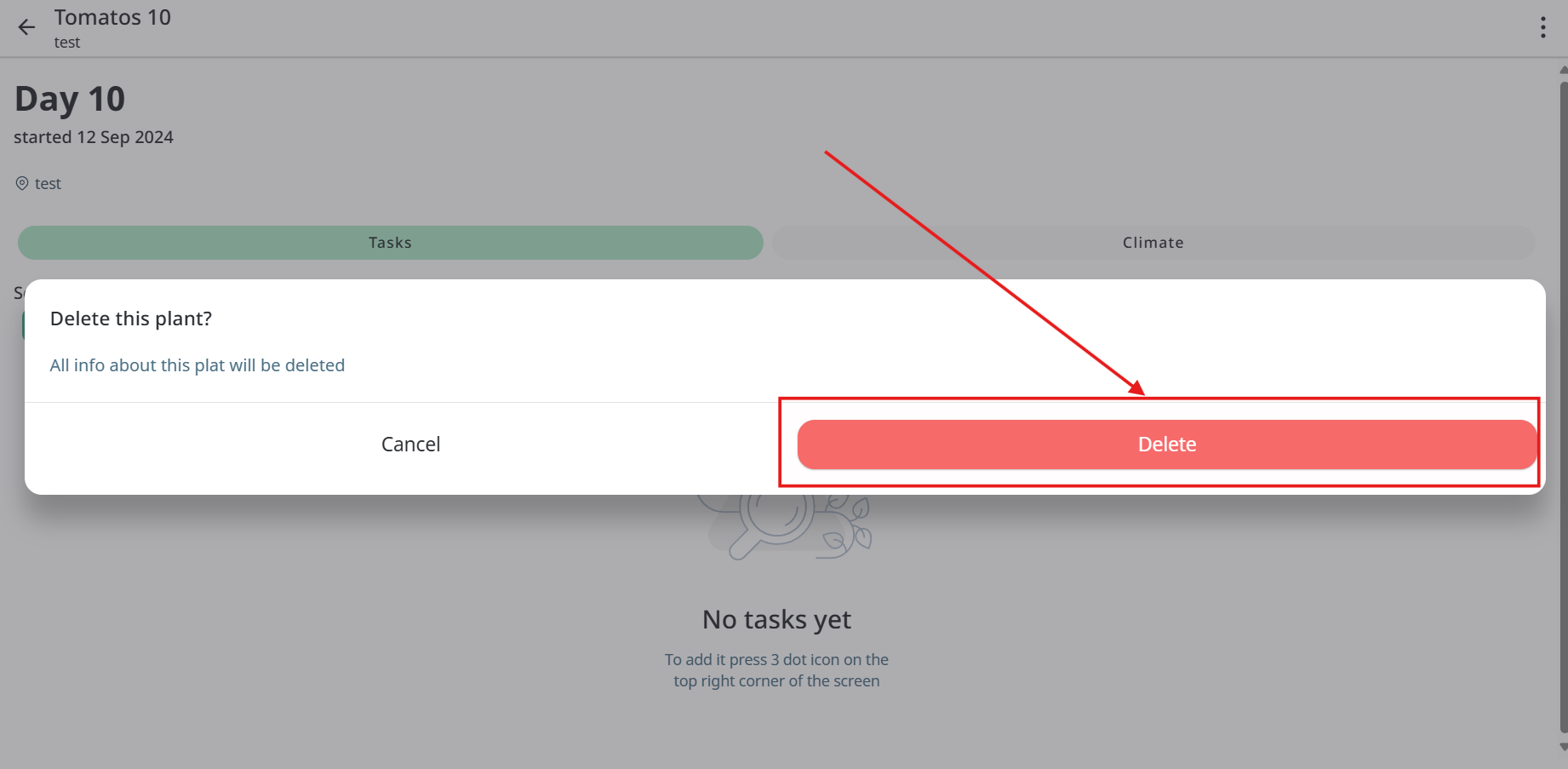
- At the end user needs to confirm deleting.
Plants climate monitoring
- To see sensor monitoring data for plant user needs to tap on the “Agrinotes” icon between “Modules” and “Settings” icons on the bottom panel of the App.
- Then user needs to tap the plant he wants to see information about.
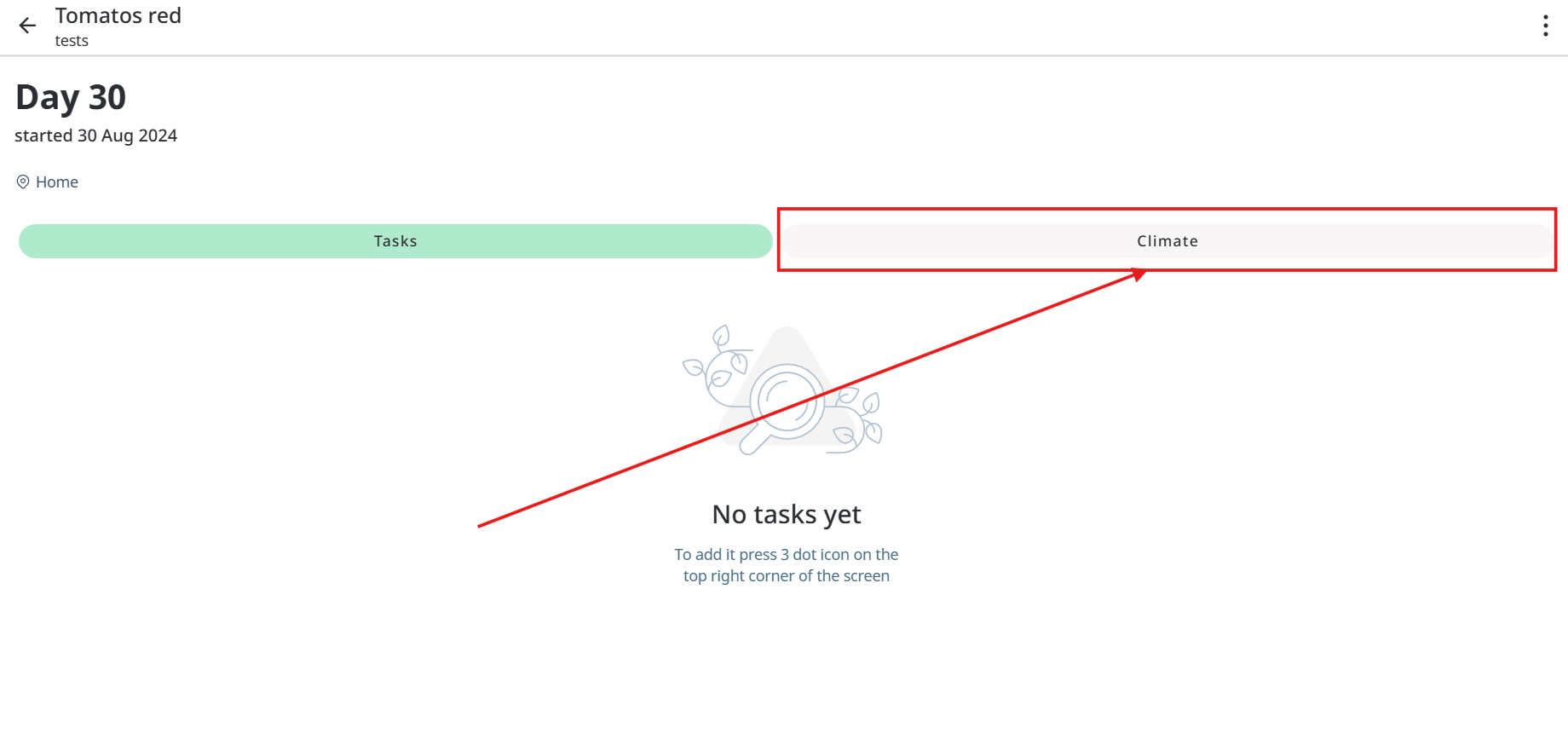
- Next user needs to tap on the “Climate” button.
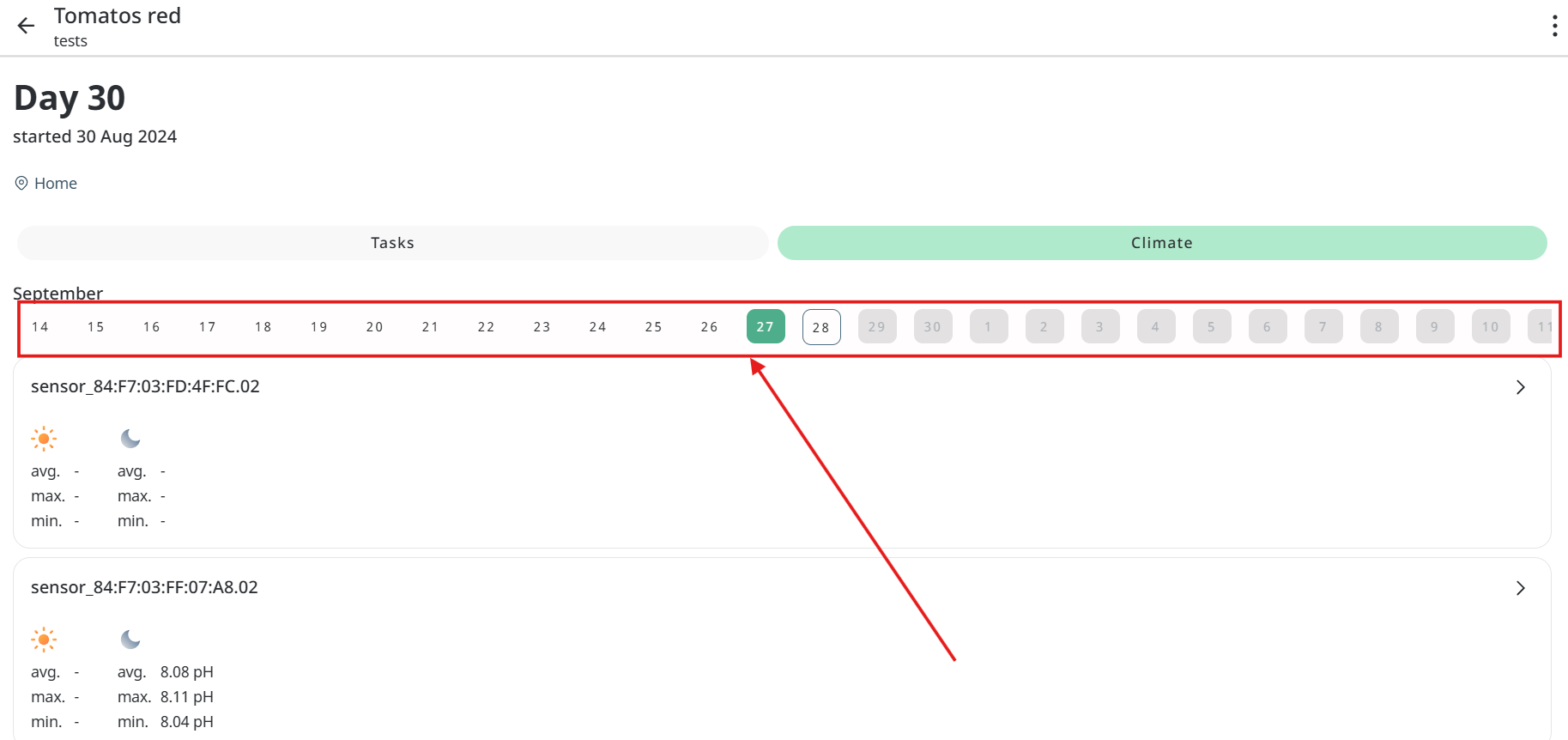
- In the opened window user can see calendar, he needs to click on needed date.
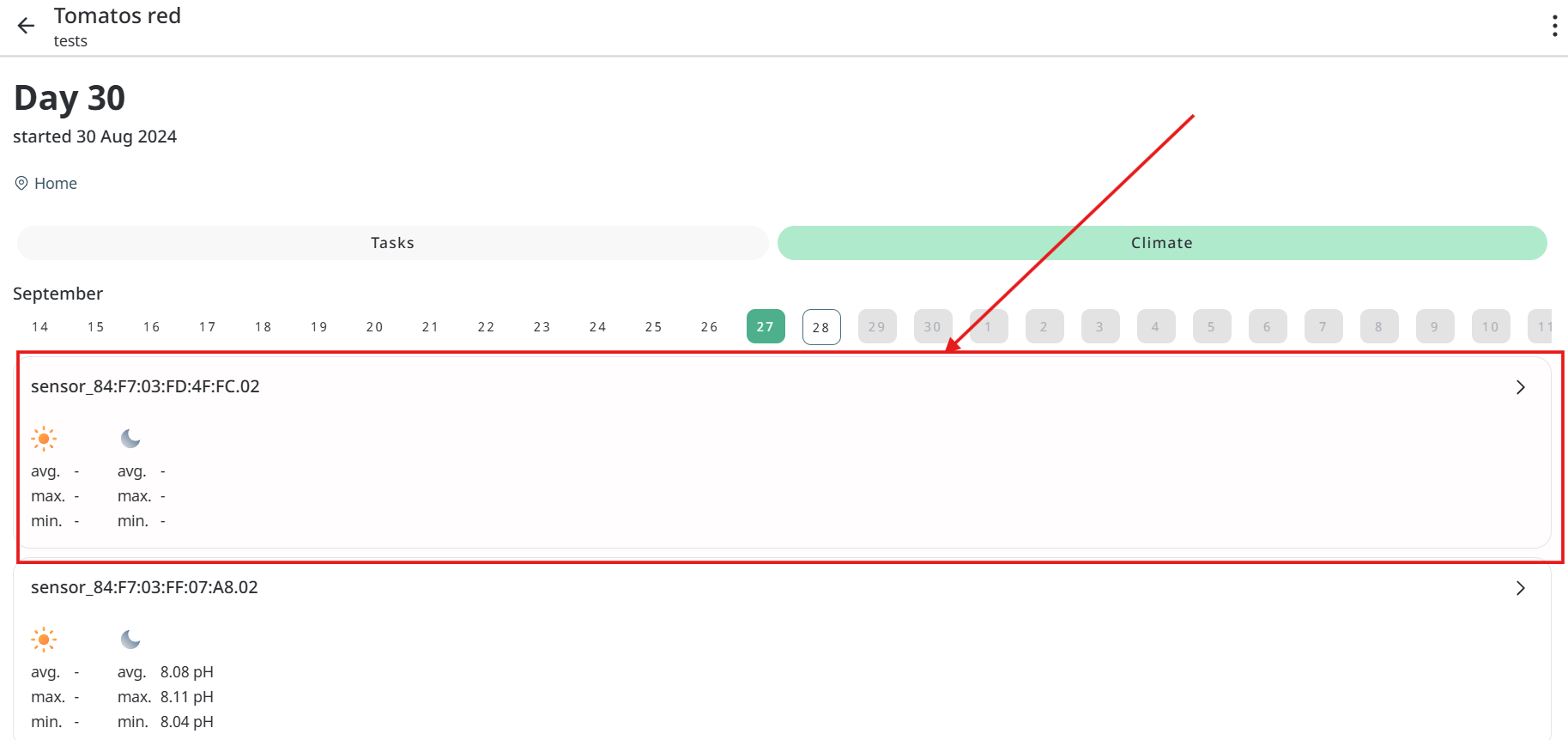
- Then user needs to click on sensor about which he want to see information.
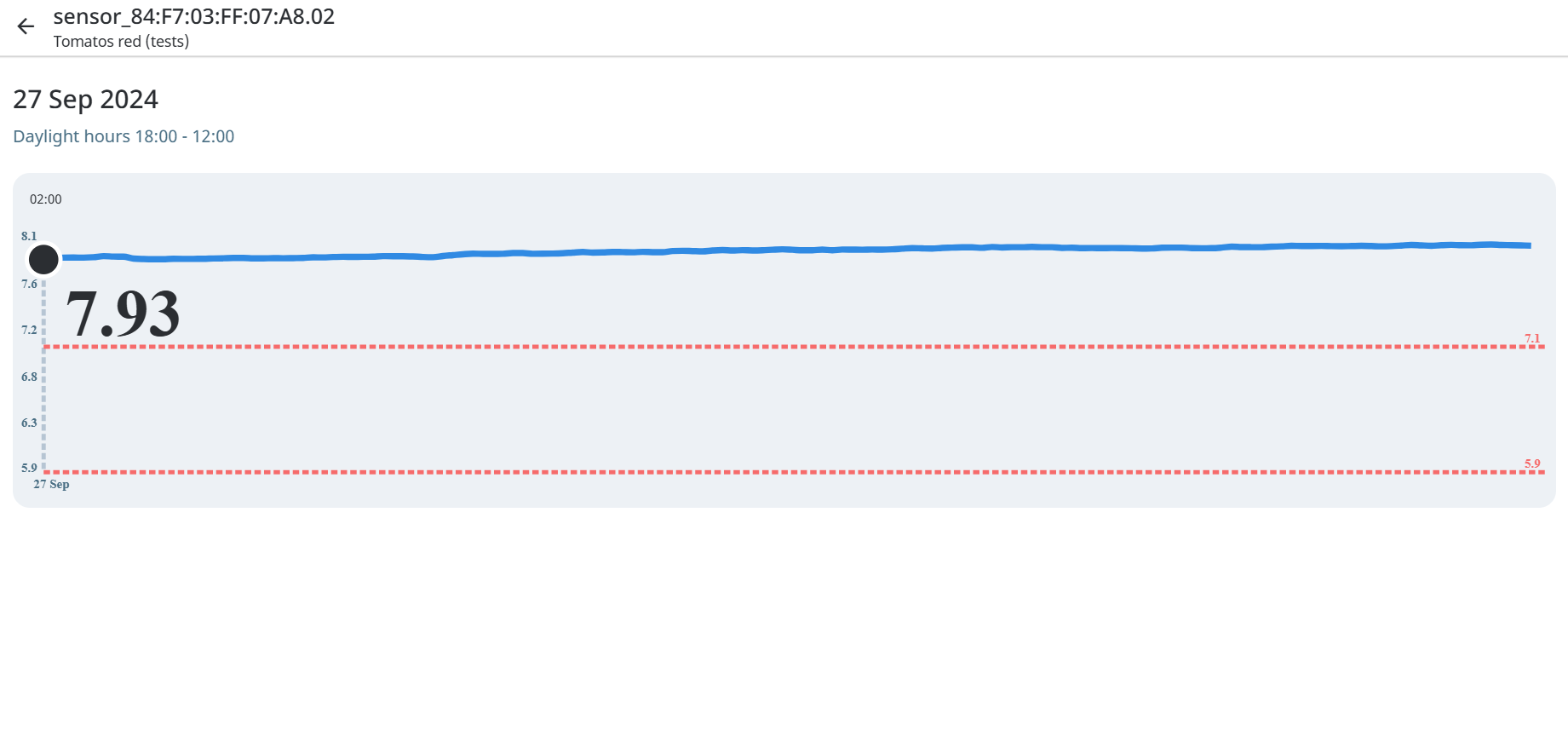
- In open window user can see sensor data during choosen date.